


Written and tested by Black Joseph
Updated October 28, 2026
When you buy through our links, we may earn a commission. See how we work with brands here.
Want apps on your Google TV that aren’t available in the Play Store? You can install them with a quick process known as jailbreaking. It only takes a few setting changes and one free app called Downloader app.
We used a TCL Google TV, but the steps are the same on Sony, Hisense and any TV running Android TV or Google TV OS.
But, before you install anything outside the play store, keep in mind that your online activity can be exposed. Using a VPN on your Google TV is important as it not just protects your privacy but also unblocks any geo-restricted content.
🛡️ OUR TOP PICK FOR GOOGLE TV Surfshark VPN Encrypt your Google TV connection and keep your browsing private, especially on shared or public Wi-Fi. Set up in under 2 minutes. 🔒 30-day money-back guarantee
📋 Table of Contents
Watch: How to Jailbreak Google TV
If you prefer to follow along on video, watch the full tutorial below, or scroll down for the step-by-step guide.
What Does It Mean to Jailbreak Google TV?
Jailbreaking your Google TV simply means adjusting a few built-in settings so your device can install apps from outside the Google Play Store.
Android-based TVs are designed to allow this. You’re just turning on a setting that Google already built in, with no hardware changes needed.
Step 1: Enable Developer Mode
This first step unlocks the setting that lets you install outside apps. Start from the home screen.
Step 1: Use your remote to move up to the menu at the top of the screen. Scroll to the right and select the Quick Settings icon (the gear).
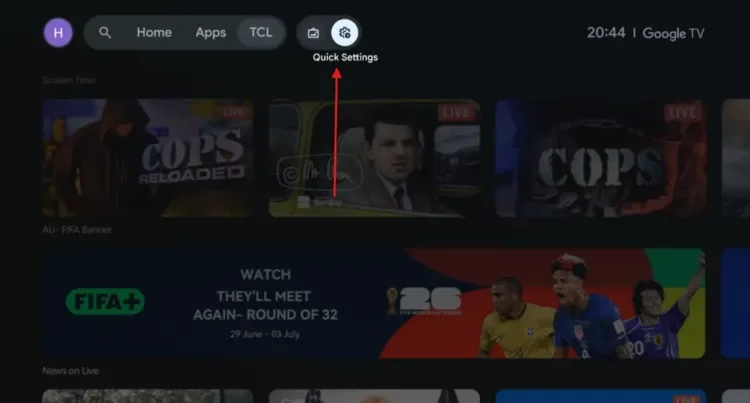
Open Quick Settings
Step 2: In the panel that opens on the right, select All settings at the top.
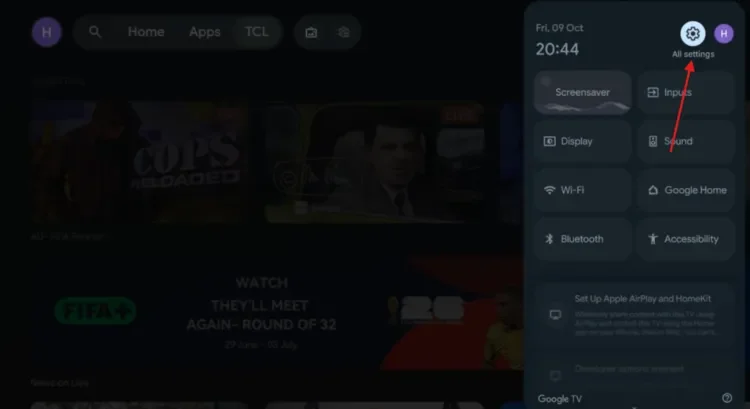
Select “All settings”
Step 3: Scroll down and select System.
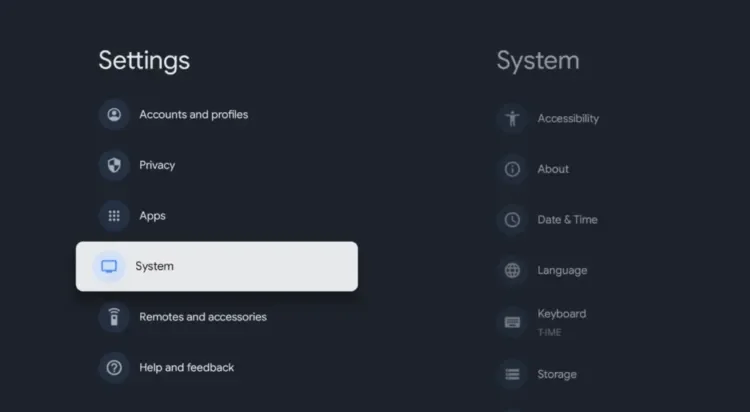
Select “System”
Step 4: Choose About from the list.
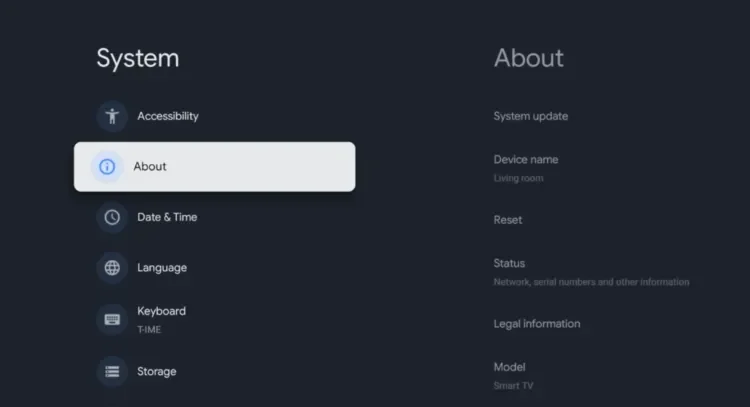
Select “About”
Step 5: Scroll down to Android TV OS build and click it 7 times continuously. A message appears saying that you are now a developer.
If developer mode was already on, it says No need, you are already a developer, like in the screenshot. Either way, developer mode is enabled. Press the Home button on your remote.
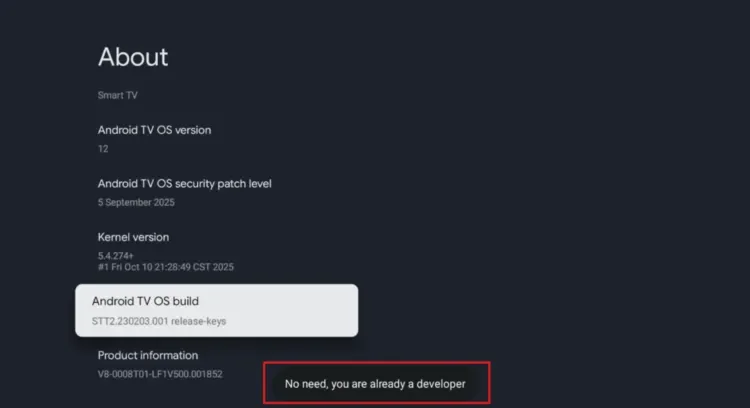
Click 7 times
Step 2: Install the Downloader App
Next, install the Downloader app from the Google Play Store.
Step 1: Go back to the menu at the top of the screen and select Apps.
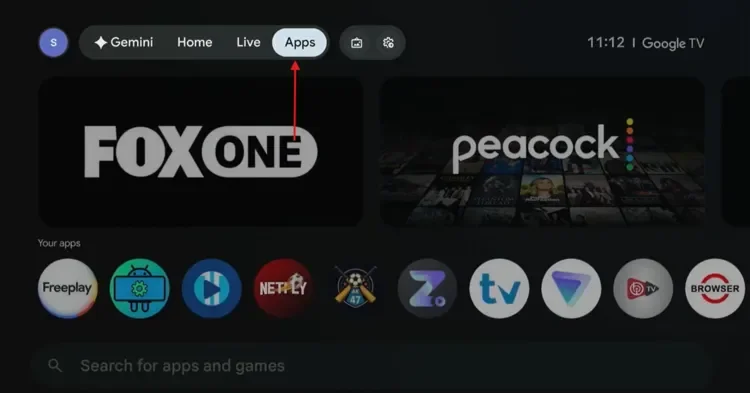
Select “Apps”
Step 2: Scroll down to the Search for apps and games bar and select it.
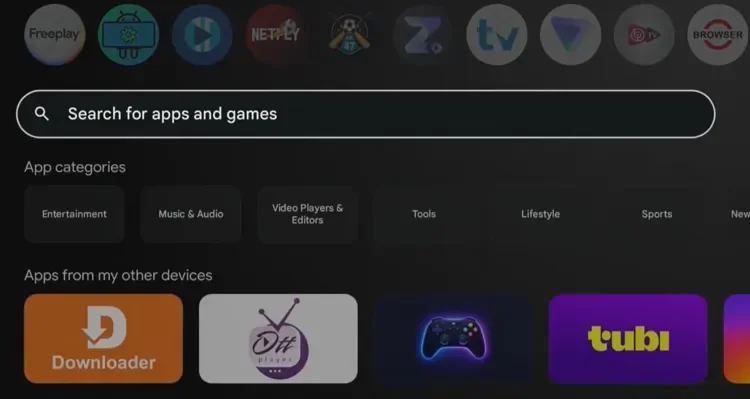
Select the search bar
Step 3: Type Downloader. You can also use the voice command button on your remote to find it instantly.
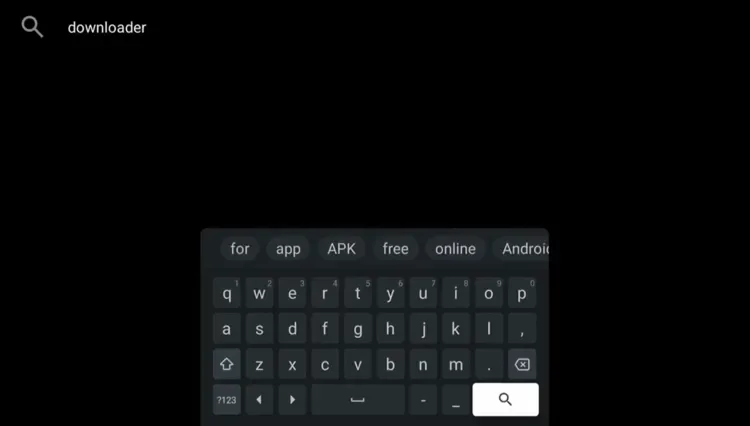
Search for Downloader
Step 4: Select the orange Downloader app by AFTVnews.
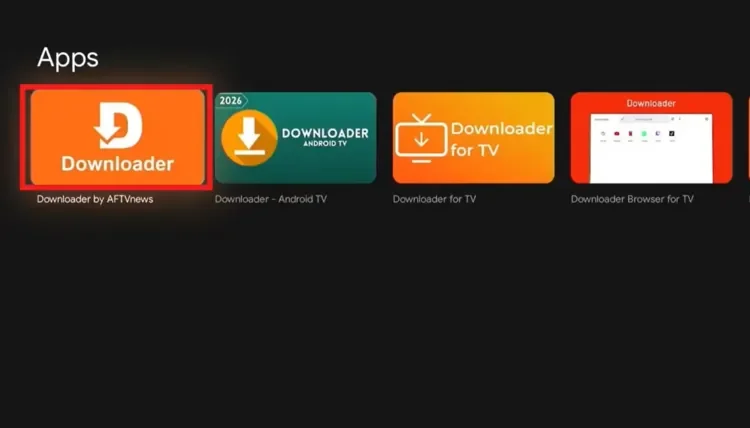
Select the orange Downloader app
Step 5: Click Install.
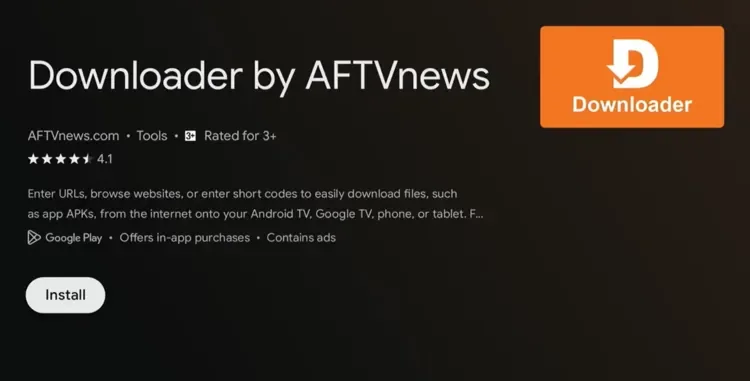
Click “Install”
Step 6: Wait a few moments while Downloader installs. It shows a progress bar and is verified by Play Protect.
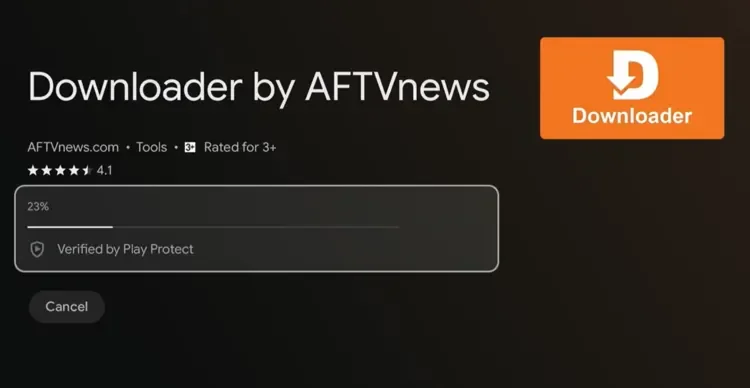
Downloader installing
Step 7: Once Downloader is installed, select Open and wait for the app to load completely.
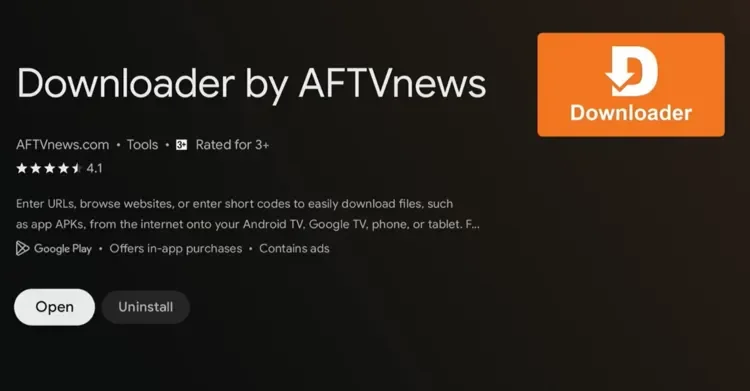
Click “Open”
Step 3: Install Apps with on Jailbroken Google TV (Sideloading)
Now use our master downloader code 1075775 to open the apps page. All the apps are checked and updated regularly, so you can always access the latest working versions.
Make sure to install & connect to Surfshark VPN on your Google TV before accessing any unofficial streams or geo-restricted content to keep your connection secure and private.
Step 1: In Downloader, select the URL box.
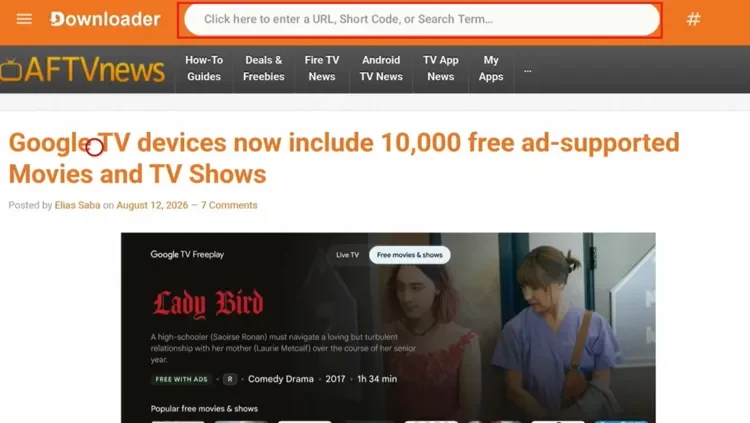
Select the URL box
Step 2: Enter the Downloader code 1075775 using the on-screen number pad, then select Load.
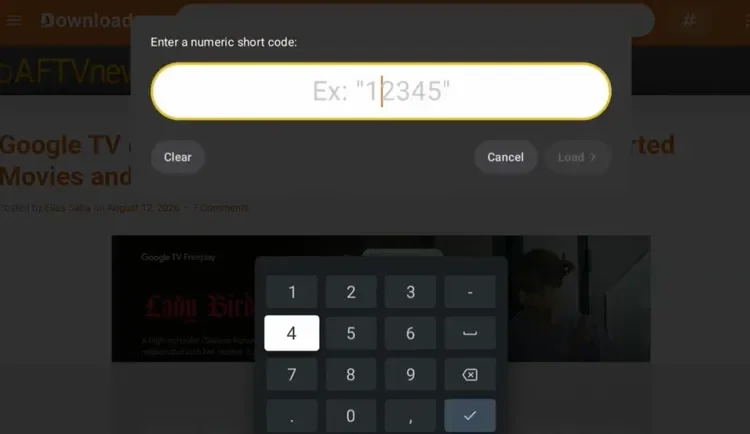
Enter the Downloader code
Step 3: This is the Downloader app page. Scroll to the app you want and select its Download button.
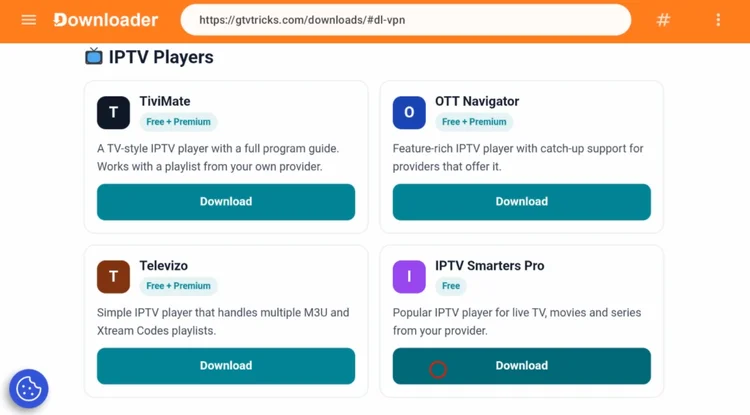
Select “Download” under your app
Step 4: A download page opens. Select the blue download button to start the download.
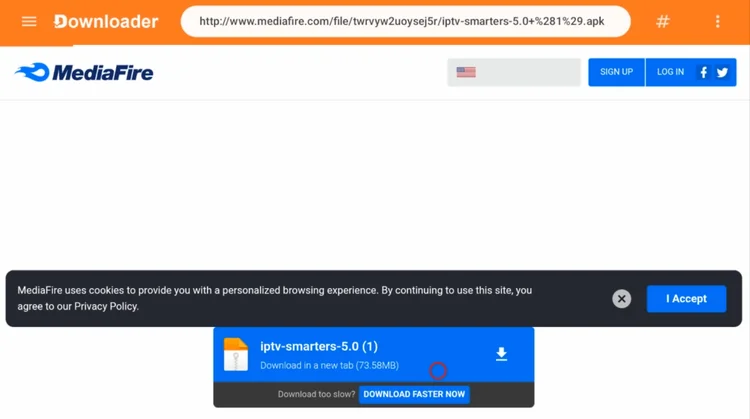
Start the file download
Step 5: Wait while the file downloads.
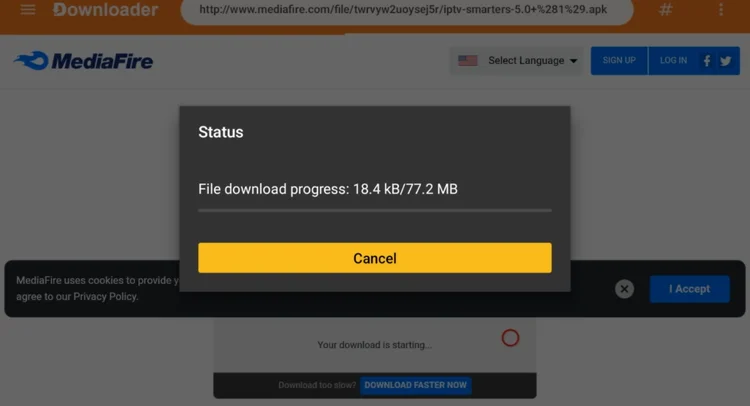
File download progress
Step 6: Select Install.
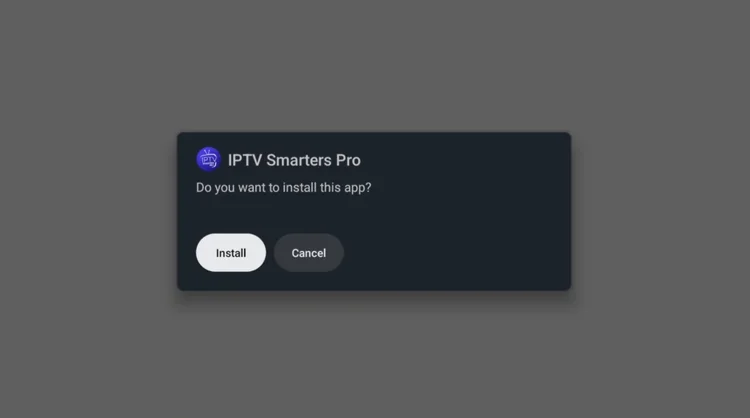
Confirm the installation
Step 7: When it says App installed, select Done to finish. You can find the app any time in the Apps section of your home screen.
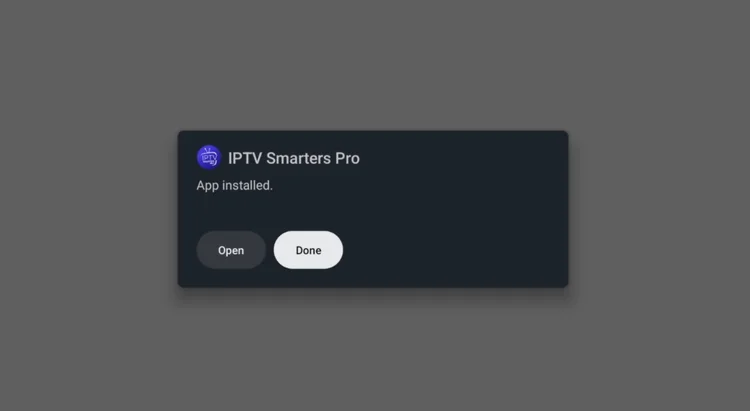
App installed
Step 8: Back in Downloader, select Delete to remove the APK file. This removes the installer file only, not the app.
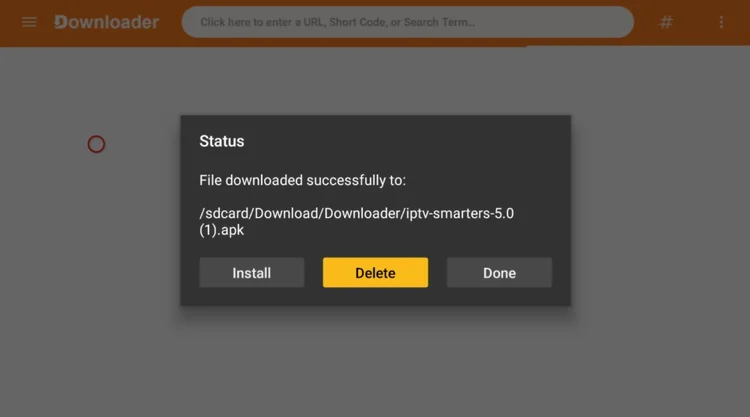
Select “Delete”
Step 9: Open Surfshark VPN and connect to any server.
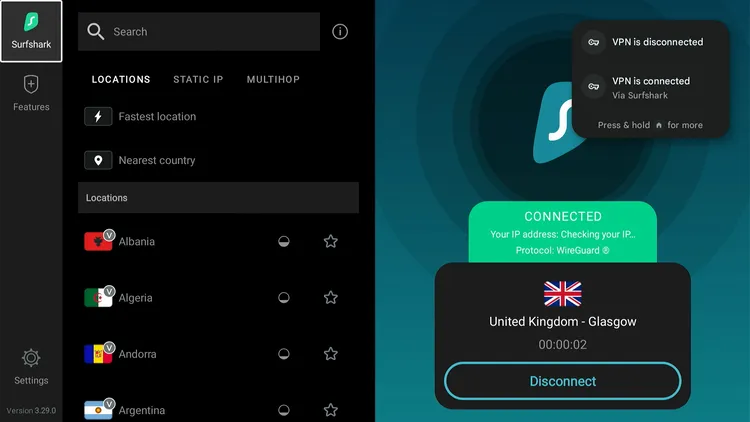
Connect to Surfshark VPN
Step 10: Now go back to the home screen and choose the app you’ve installed.
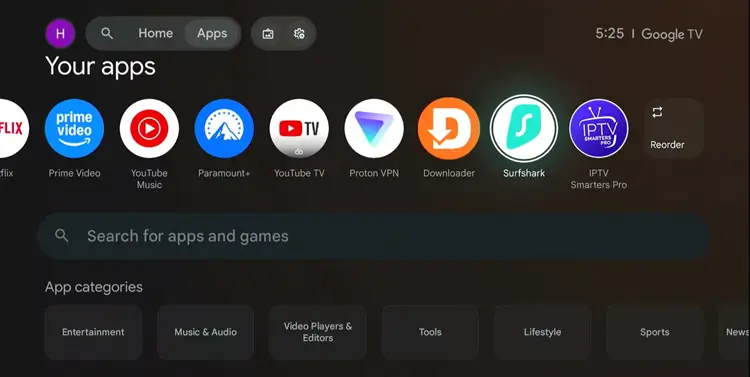
Home > Select installed app
Step 11: Done! Your app is installed on your Google TV.
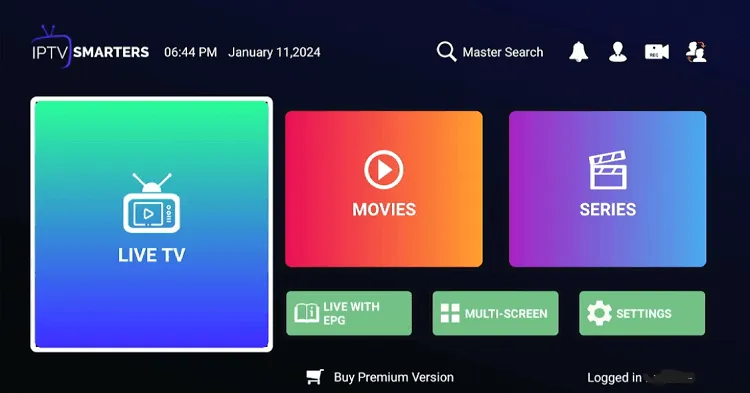
App installed using the Downloader app
Get Surfshark – 87% OFF
📌 Related Google TV Guides
Frequently Asked Questions
Is it legal to jailbreak a Google TV?
Here, jailbreaking just means enabling developer mode and allowing installs from outside the Play Store, which is a built-in Android feature. The legality of the apps you choose to install may vary by region.
Does this work on all Google TV models?
The steps work on popular brands like Sony, Hisense and TCL, and on any TV running Android TV or Google TV OS. Menus may look slightly different between brands.
What is the Downloader code?
The Google TV Tricks Downloader code is 1075775. Enter it in the Downloader app’s URL box to open a page where apps are organized into categories and updated regularly.
Why should I delete the APK file after installing?
The APK file stays on your device after the app is installed and takes up storage space. Deleting it frees that space back up.
How do I uninstall an app I sideloaded?
Go to Settings > Apps, find the app and select Uninstall. It works the same way as removing any other app.
Do I need to jailbreak my Google TV every time?
No. You only enable developer mode once. After that, you can install apps anytime through the Downloader app.
Conclusion
Jailbreaking your Google TV takes just a few steps: enable developer mode, install Downloader and enter the code. After that, you can install apps whenever you like.