


Written and tested by Black Joseph
Updated October 28, 2026
When you buy through our links, we may earn a commission. See how we work with brands here.
A new smart TV is only as useful as the apps on it. Whether you want a media player, a streaming app or a game, you’ll need to know how to add apps to your Google TV.
The good news is that there are two easy ways to do it, and both only take a minute or two. This guide walks you through each one. The steps work on any TV running the Google TV interface, including Sony, Hisense, TCL and Philips.
📋 Table of Contents
Watch: How to Install Apps on Google TV
If you prefer to follow along on video, watch the full tutorial below, or scroll down for the step-by-step guide.
Before You Start: Connect to the Internet
Apps are downloaded over the internet, so first make sure your Google TV is online.
Step 1: From the Google TV home screen, open Settings on the right side of the screen.
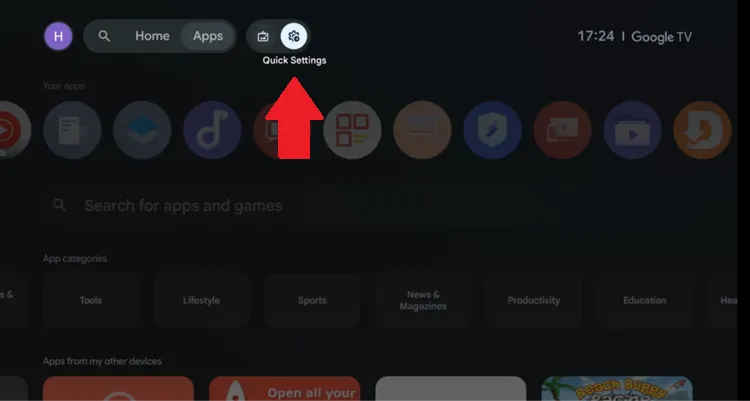
Open Settings
Step 2: Select Wi-Fi at the top of the settings menu.
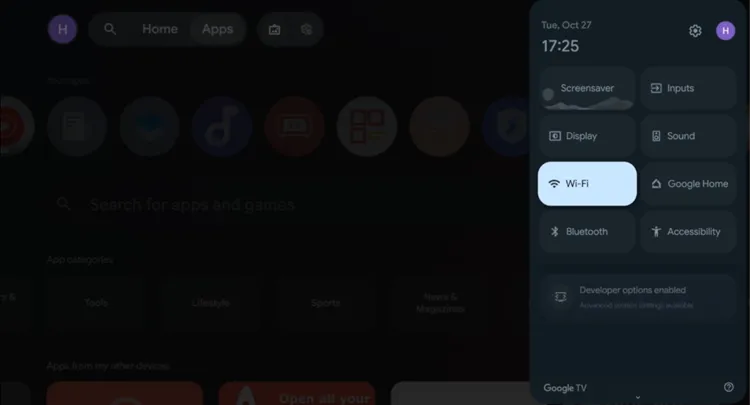
Select “Wi-Fi”
Step 3: If your TV isn’t connected yet, choose your network and enter the password. Then go back to the home screen.
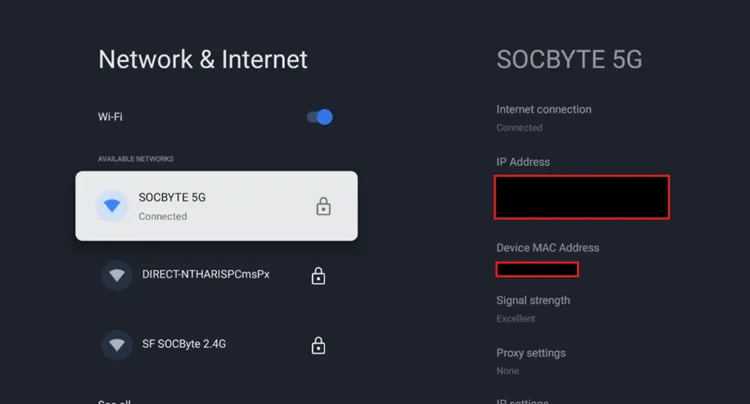
Connect to Wi-Fi
Method 1: Install Apps from the Apps Tab
This is the fastest way to add an app when you already know its name. Start from the home screen.
Step 1: From the home screen, open the Apps tab.
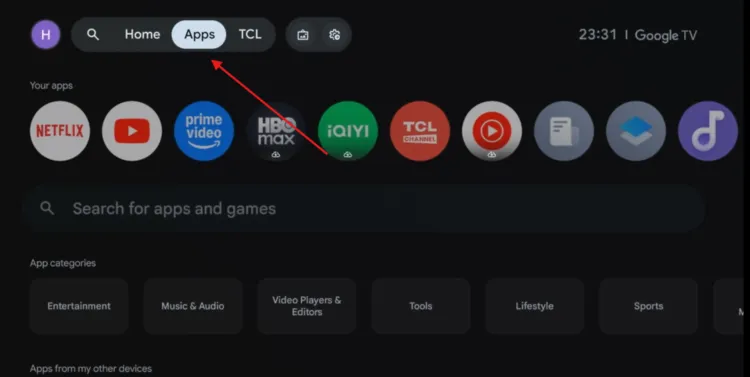
Open the Apps tab
Step 2: Scroll down to the search option and select it.
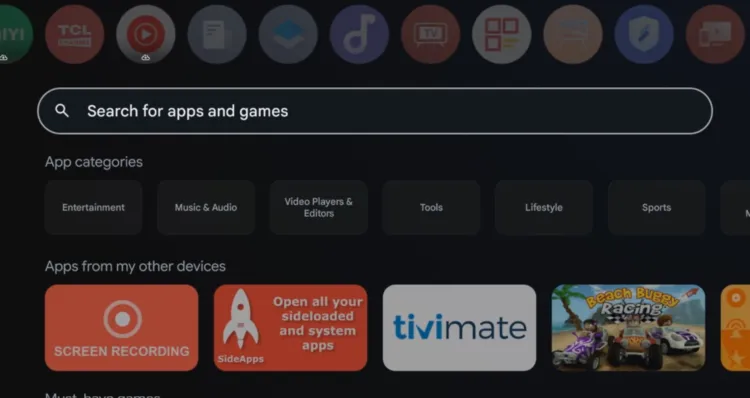
Select search
Step 3: Type the name of the app you want. We searched for VLC, then clicked the search icon.
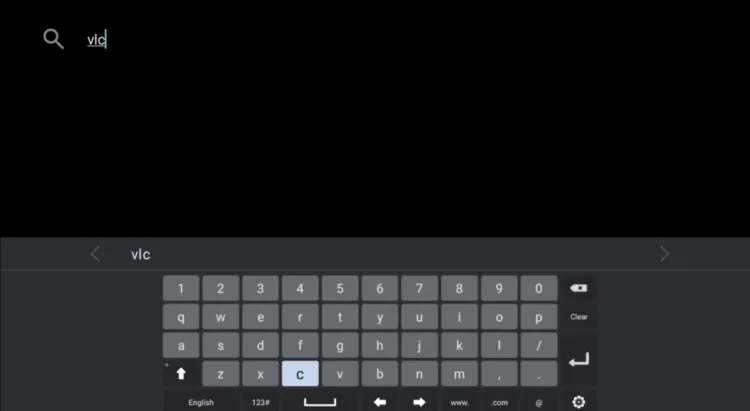
Search for the app
Step 4: Select the app from the results. We chose VLC Media Player.
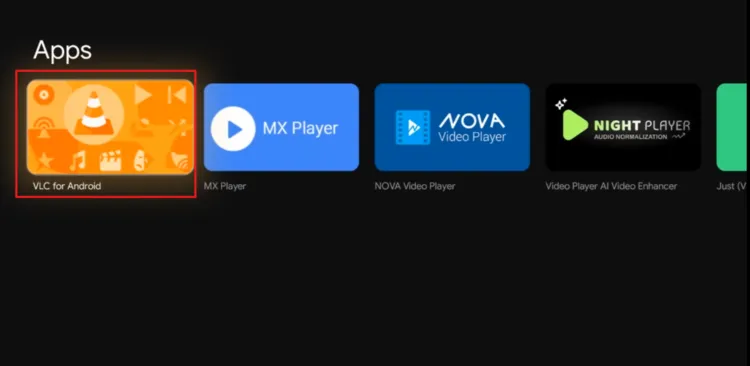
Select the app
Step 5: Click Install. It takes a minute or two for the app to download and install.
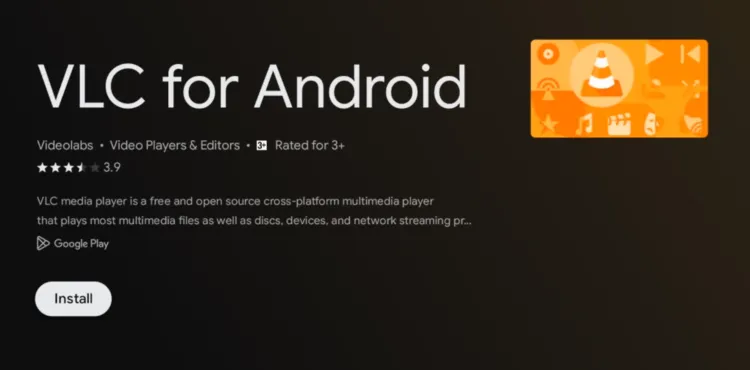
Click “Install”
Step 6: When it finishes, select Open to launch the app.
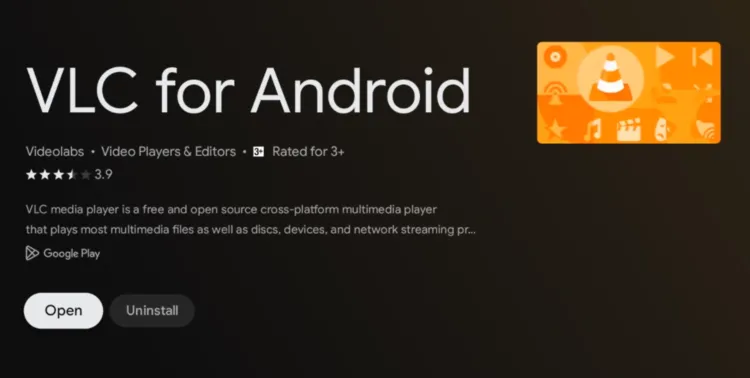
Click “Open”
Step 7: The app has been installed.
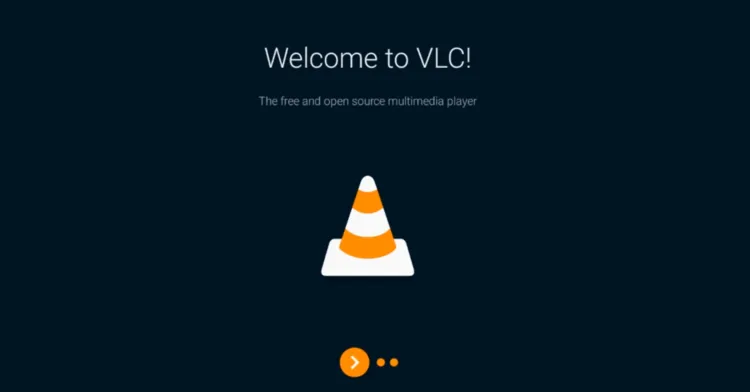
App has been installed
Method 2: Install Apps from the Google Play Store
The Google Play Store is usually hidden among the system apps on Google TV. Here’s how to open it and install apps from there.
Step 1: Click the Quick Settings icon on the top menu bar.
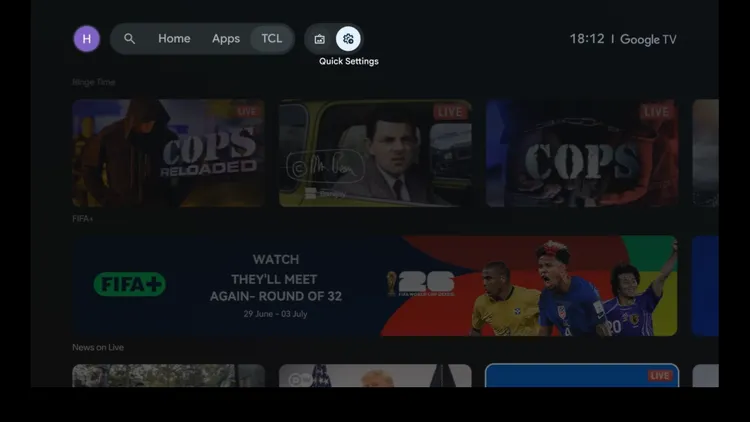
Open Quick Settings
Step 2: Open the All settings icon in the top right corner of the screen.
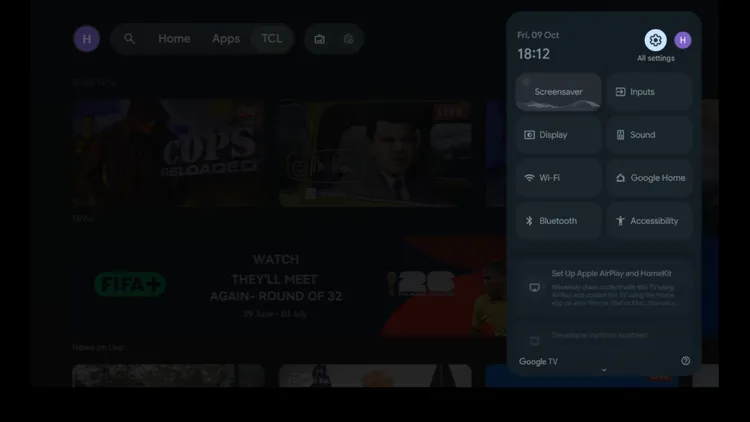
Open All Settings
Step 3: Scroll down and select Apps.
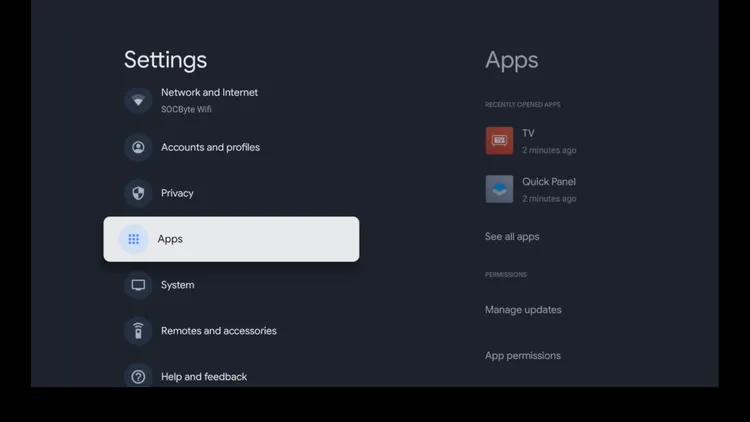
Select “Apps”
Step 4: Scroll down and select See all apps.
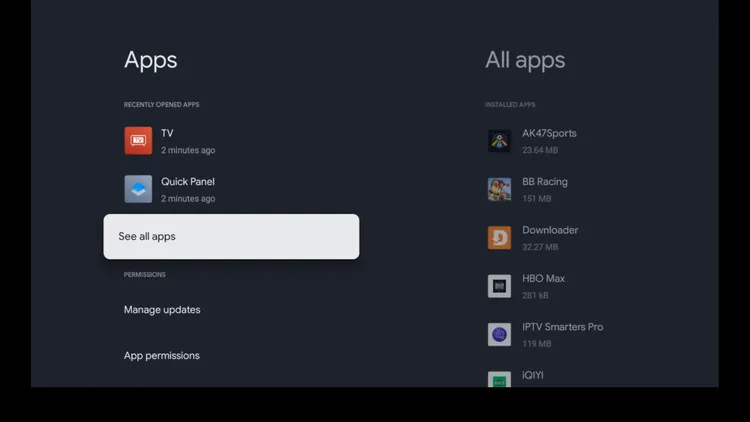
Select “See all apps”
Step 5: Scroll down and select Show system apps.
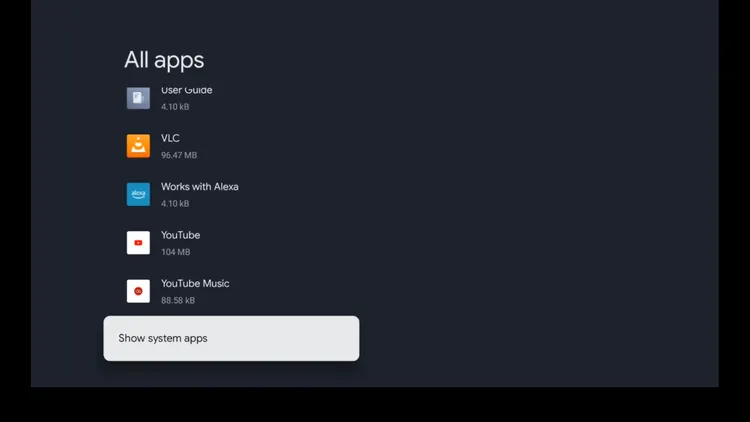
Select “Show system apps”
Step 6: Find Google Play Store among the system apps and select it.
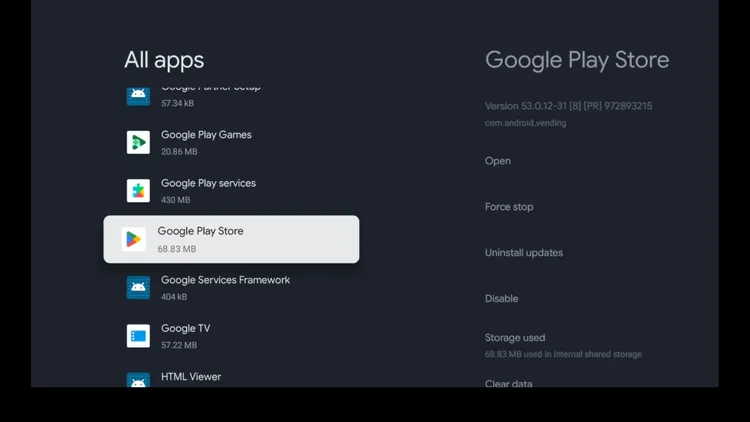
Find “Google Play Store”
Step 7: Choose Open to go straight into the Play Store.
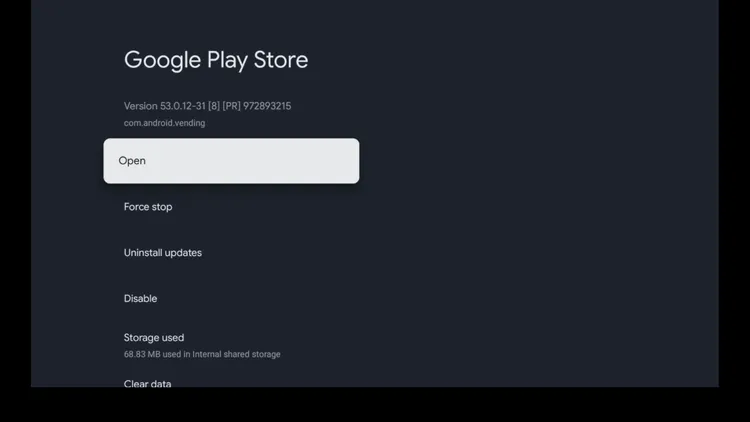
Click “Open”
Step 8: Use the search bar to look for any app, or open the Games section to browse games and apps.
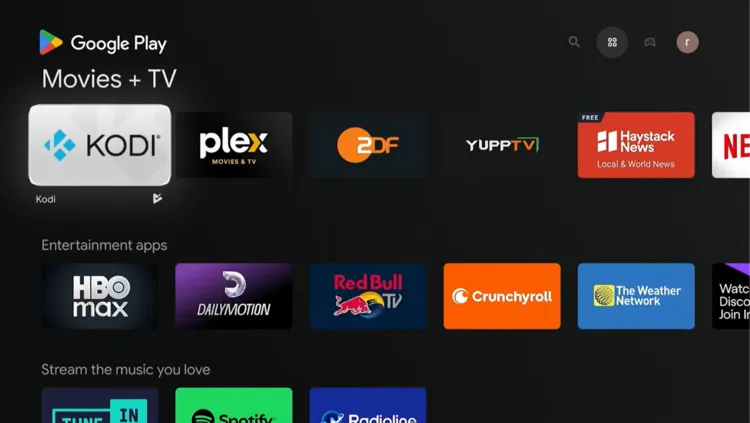
Search or browse
Step 9: Select the app you want and click Install, then Open when it’s done.
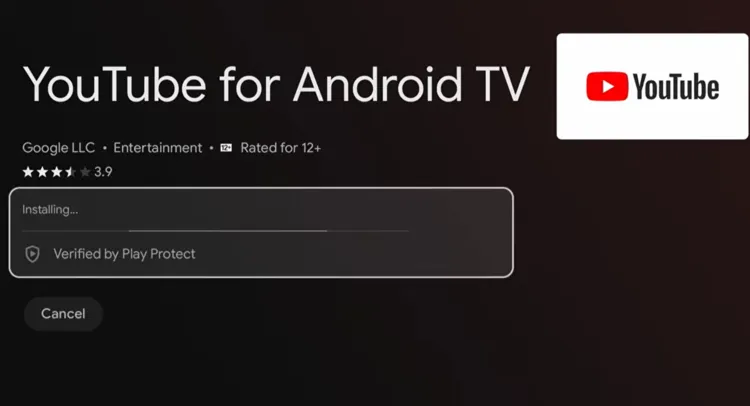
Install the app
Which Method Should You Use?
Both methods install the same apps, so pick whichever feels easier.
| Method | Best For | How It Works |
|---|---|---|
| Apps tab | Quickly installing a specific app | Search for the app right from the home screen. |
| Google Play Store | Browsing apps and games | Open it from Settings, then search or browse the Games section. |
📌 Related Google TV Guides
Frequently Asked Questions
How do I install apps on Google TV?
There are two ways. You can search for the app from the Apps tab on the home screen, or you can open the Google Play Store from your settings and install it there.
Do I need an internet connection to install apps?
Yes. Your Google TV must be connected to Wi-Fi or the internet to download and install apps.
Where do installed apps appear on Google TV?
New apps show up on your home screen, all the way to the right of the apps row.
Why can’t I find the Google Play Store on my Google TV?
On many Google TV devices the Play Store is hidden among the system apps. Method 2 in this guide shows you how to open it.
Can I install games the same way?
Yes. Search for a game by name, or open the Games section in the Google Play Store to browse games and apps.
What if an app isn’t available in the Play Store?
Some apps aren’t listed for your TV or region. You can install them with the Downloader app instead. See our Downloader app.
Does this work on Sony, Hisense, TCL and Philips TVs?
Yes. The steps work on any smart TV that runs the Google TV interface. Menus may look slightly different between brands.
Conclusion
Installing apps on your Google TV is simple. Search for an app from the Apps tab, or open the Google Play Store from your settings, then click Install. Within a minute or two, your new app is ready to use.
For safer streaming, we recommend Surfshark VPN.