

Written and tested by Black Joseph
Updated October 27, 2026
Switched on a new smart TV and now you’re clueless how to set it up? Take a pause. Google TV setup is quick once you know what each screen wants from you.
The steps below work on TVs from Sony, Hisense, TCL, Philips and most other brands that run Google TV & Android TV. We’ll go screen by screen, from choosing a language to finishing on the home screen.
📋 Table of Contents
Watch: How to Set Up Google TV
Watch the full video tutorial below, or scroll down for the written step by step process.
What You Need Before You Start Setting Up Google TV
Get these ready first and the setup will go smoothly:
- Your TV plugged into a power outlet and switched on.
- Batteries in the remote.
- Your Wi-Fi name and password (or an Ethernet cable).
- A Google account. Any regular Gmail account works.
- Optional: an Android phone if you want to set up with a QR code instead of typing.
Step 1: Set up Language, Region and Wi-Fi
The first few screens set the basics. Use the arrow keys and the OK button on your remote to move through them.
Step 1: On the welcome screen, choose your language.
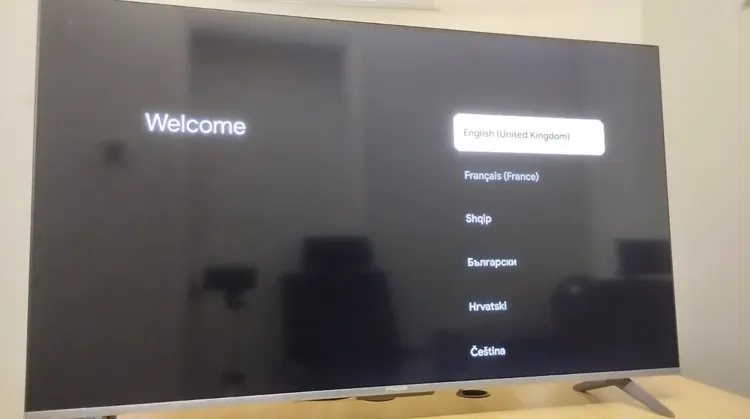
Select your language
Step 2: Select the country or region where you live. Some TVs skip this screen.
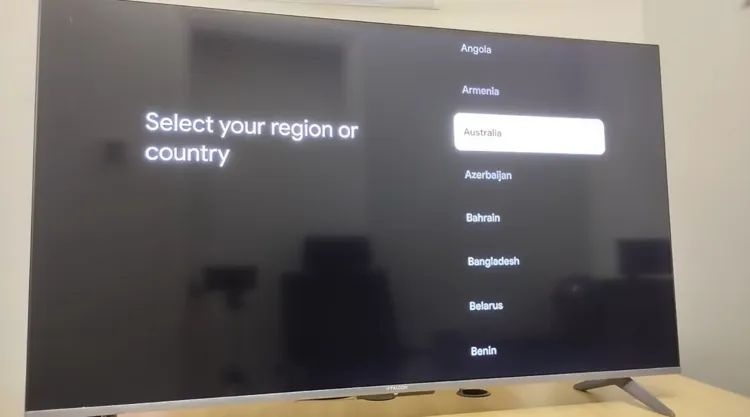
Select your country or region
Step 3: Choose Set up Google TV. This is the full experience, with recommendations, search and the Play Store.
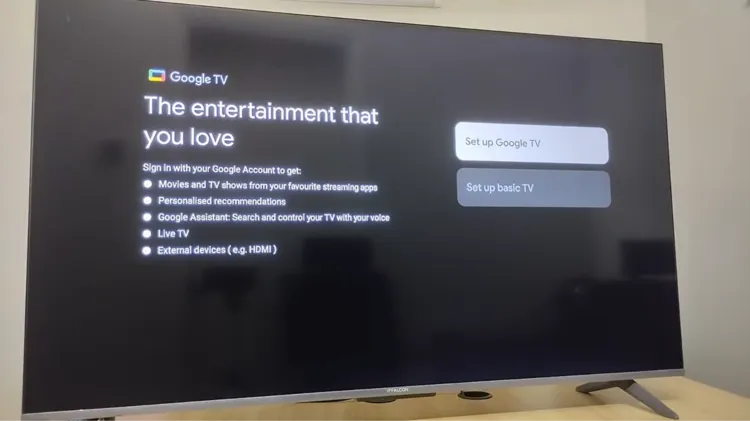
Select “Set up with Google TV”
Step 4: Decide how to continue. You can scan the QR code with your phone, or choose Set up on TV instead to do everything with the remote. This guide uses the TV method.
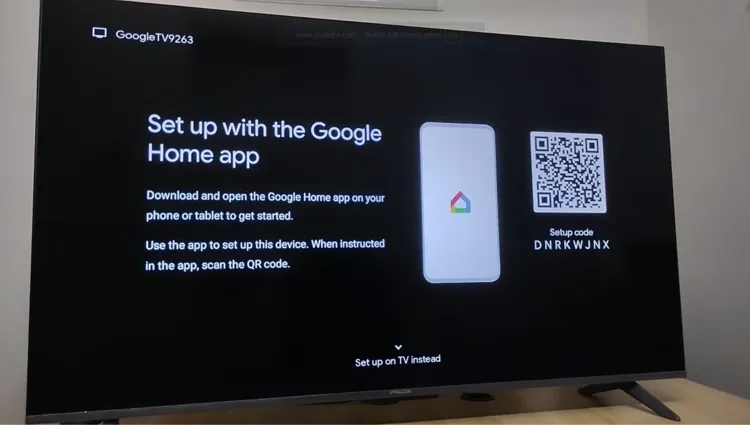
Choose “Set up on TV instead”
Step 5: Select your Wi-Fi network from the list.

Choose your Wi-Fi network
Step 6: Enter your Wi-Fi password with the on-screen keyboard.
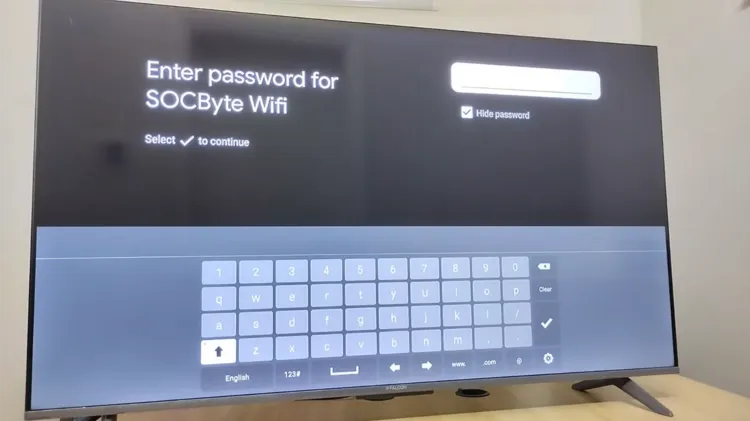
Enter your Wi-Fi password
Step 2: Google Account and Permissions
Step 7: Sign in with your Google account. Using the account you use every day means your watchlist, recommendations and purchased apps follow you to the TV.
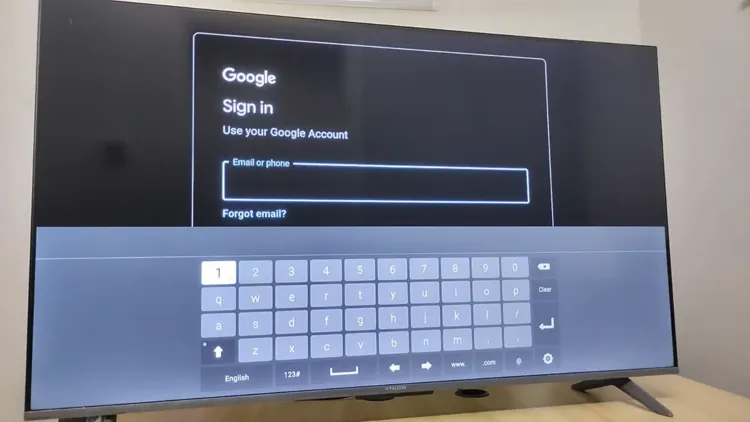
Sign in to your Google account
Step 8: Review the Google services screen. These are toggles for things like location. Turn off what you don’t want, then select Accept.
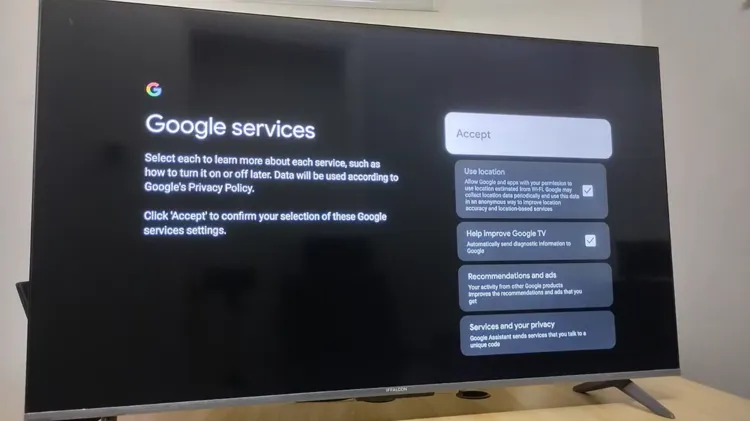
Review Google services permissions
Step 9: If you see an offer for extra features or services, you can select No thanks.
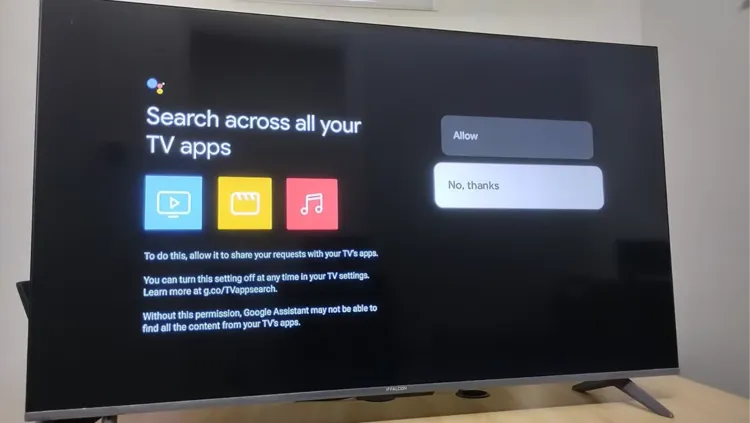
Skip extra offers if you don’t need them
Step 10: Choose which starter apps to install and select Confirm. You can also skip this and add apps later.
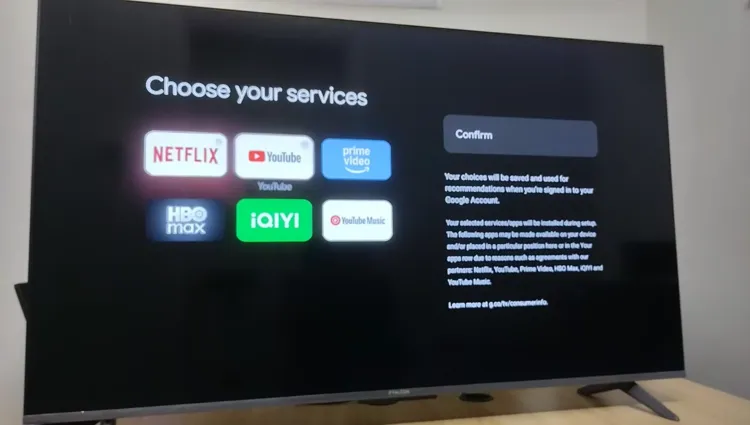
Pick starter apps or skip
Step 3: Pair Your Remote and Finish
Step 11: To pair the remote, stay close to the TV and press and hold Home and the center OK button together for 5 to 10 seconds, until it says pairing was successful.
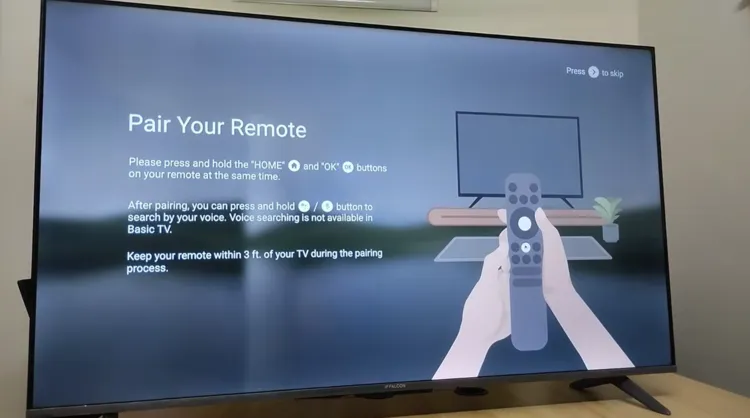
Pair your remote
Step 12: Read the terms and conditions and select Agree to continue.
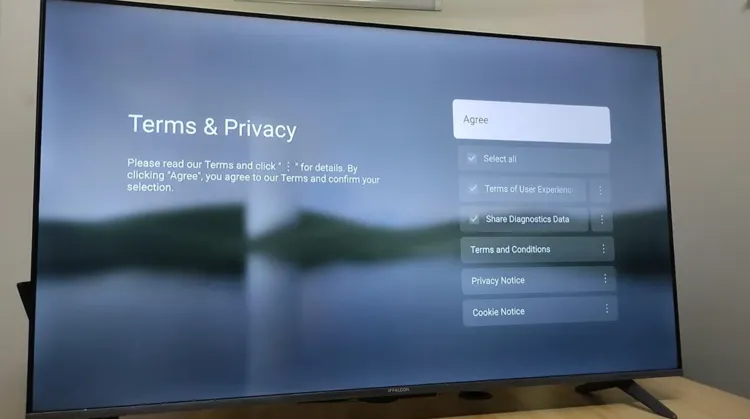
Accept the terms
Step 13: Press OK a couple of times until the setup screen appears. The TV now applies finishing touches and installs your apps, which usually takes 3 to 5 minutes depending on your internet speed.
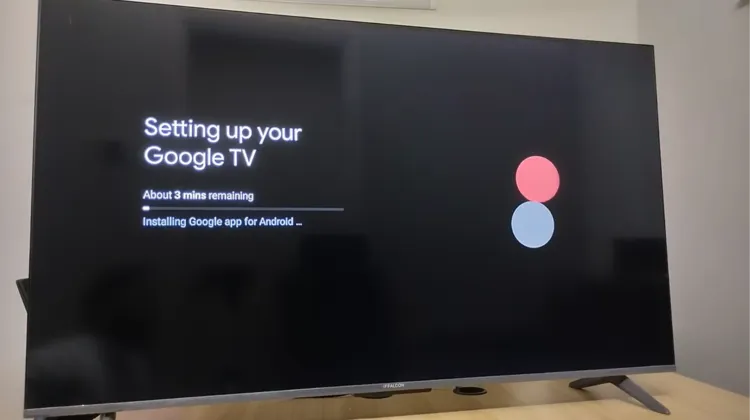
Wait while setup finishes
Step 14: Select My Home (or the room option) and choose where your TV is placed, such as Living room.
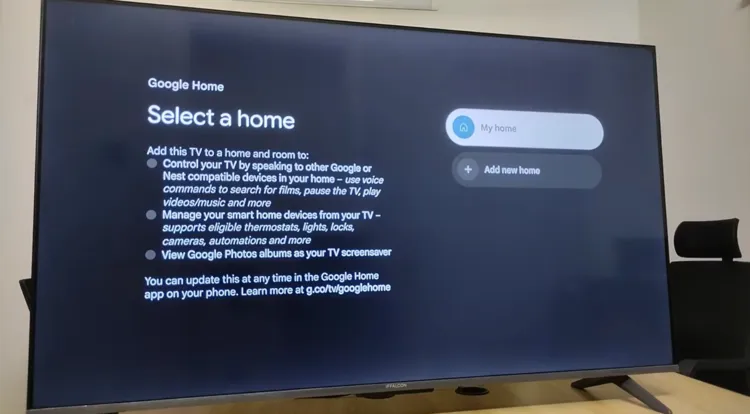
Choose the room your TV is in
Step 15: That’s it. You’ll land on the Google TV home screen, where you can browse recommendations, open apps and search with your voice.
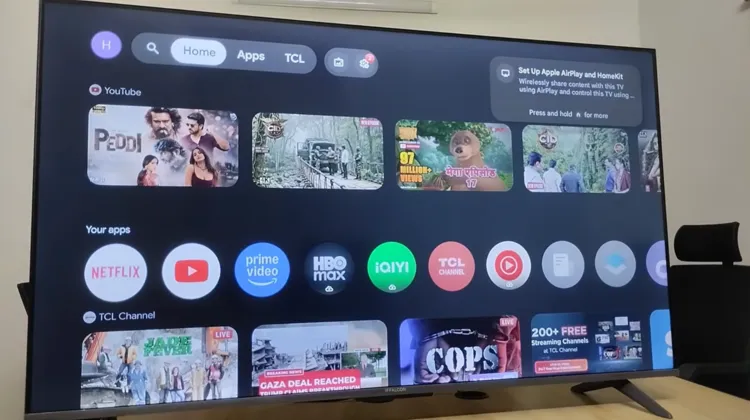
Google TV Setup complete
What to Do After Setup
Your TV works now, but a few quick extras make it feel much better from day one:
- Check for updates. Go to Settings > System > About > System update so you have the latest software and security fixes.
- Control power and volume with one remote. Look under Settings > Remotes & Accessories to set up remote buttons for your TV or soundbar.
- Install your streaming apps. Open the Apps tab or use voice search to find them in the Google Play Store.
- Tweak the defaults. Read our guide to the hidden Google TV settings you should change for a cleaner, faster setup.
- Stream more safely. Surfshark VPN
Setup Not Working? Quick Fixes
| Problem | Fix |
|---|---|
| Remote won’t pair | Replace the batteries, move closer to the TV and press Home + OK, or (Back + Home) |
| Wi-Fi won’t connect | Double-check the password and try the 5 GHz band. Work-style networks (WPA2-Enterprise) aren’t supported. Restarting your router can also help. |
| QR code won’t scan | Choose Set up on TV instead and finish with the remote. |
| Stuck mid-setup | Unplug the TV for a minute, plug it back in and start the step again. |
📌 Related Google TV Guides
Frequently Asked Questions
Do I need a phone to set up Google TV?
No. A phone makes it faster because you can scan a QR code, but you can choose Set up on TV instead and finish everything with the remote.
Do I need a Google account?
Yes. A Google account is needed to use Google TV, install apps from the Play Store and get personalized recommendations. A Gmail account works best.
Can I skip the apps screen during setup?
Yes. You can skip it and install apps whenever you like from the Apps tab or the Google Play Store.
Why won’t my remote pair?
Replace the batteries, stay close to the TV and hold Home + OK for 5 to 10 seconds. If that doesn’t work, try Back + Home.
Can I change my setup choices later?
Yes. Language, Wi-Fi, account and permissions can all be changed from Settings after setup.
Final Thoughts
Setting up Google TV comes down to a few simple choices: language, Wi-Fi, account and remote. Once you reach the home screen, you can add apps and fine-tune the settings at your own pace.