


Written and tested by Black Joseph
Updated October 28, 2026
When you buy through our links, we may earn a commission. See how we work with brands here.
Is your Google TV lagging, freezing or taking forever to respond to the remote? Do apps open slowly or fail to load? You don’t need a new TV to fix it. A few simple settings changes can make a big difference.
In this guide, we’ll show you the easiest and most effective settings to speed up your Google TV, so menus feel smoother and more responsive.
These fixes are tried & tested and will work on all Google Smart TVs from Sony, Hisense, TCL, etc.
📋 Table of Contents
Watch: How to Fix a Slow Google TV
If you prefer to follow along on video, watch the full tutorial below, or scroll down for the step-by-step guide.
Best Fixes for a Slow Google TV
Most of the speed settings are hidden inside developer options. This is why you need to jailbreak your Smart TV first to turn them on. If you have already jailbroken your TV, you can jump straight to the fixes.
Fix 1: Speed Up Animations
There are a lot of settings inside developer options, so scroll down until you reach the animation settings. You’ll change three of them from 1x to 0.5x.
Step 1: From the Google TV home screen, go to the Quick Settings icon at the top of the screen and select it.
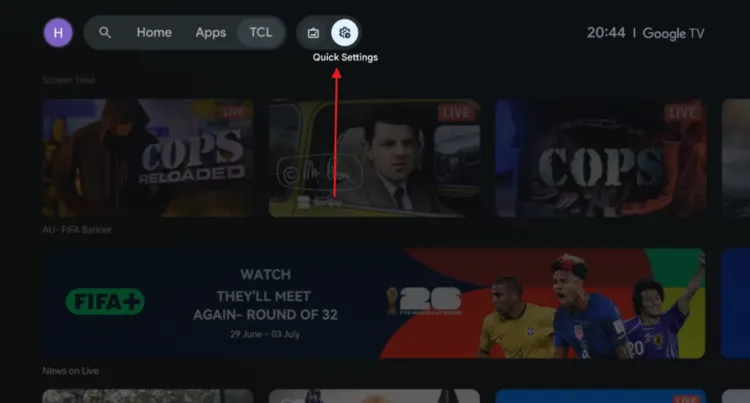
Open Quick Settings
Step 2: Select All settings.
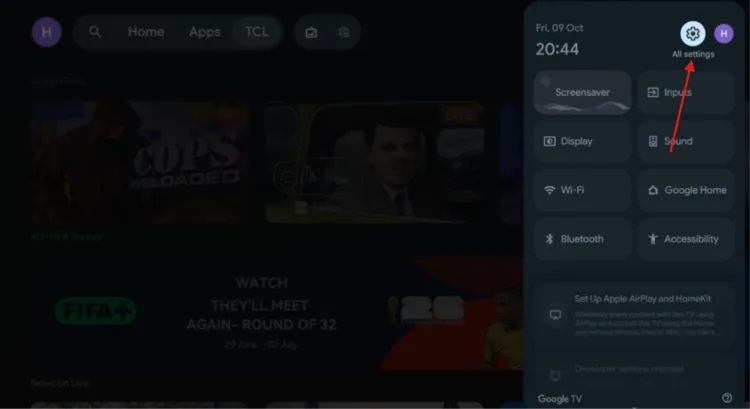
Open All Settings
Step 3: Scroll down and select System.
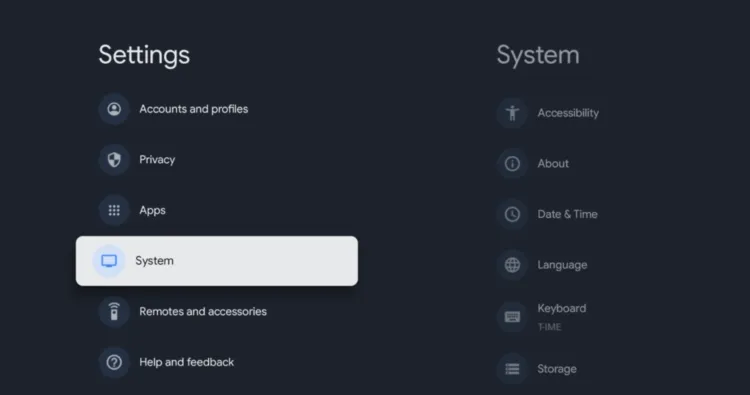
Select “System”
Step 4: In the System menu, slowly scroll down and select Developer options.
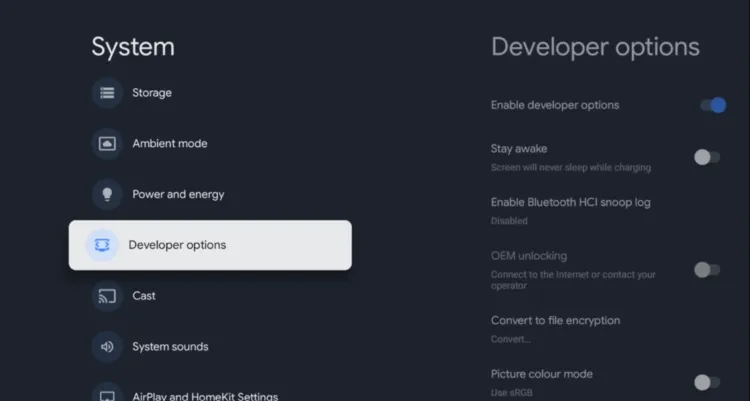
Open Developer options
Step 5: Scroll down to the animation settings and select Window animation scale. It is set to 1x by default, so change it to 0.5x.
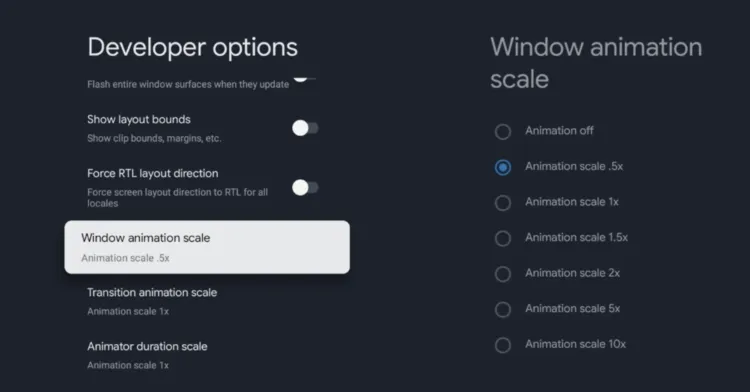
Window animation scale: 0.5x
Step 6: Move down to Transition animation scale, open it and change 1x to 0.5x.
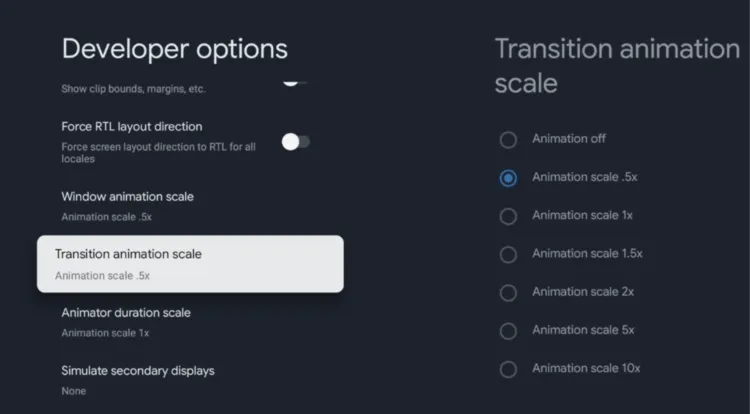
Transition animation scale: 0.5x
Step 7: Just below it, select Animator duration scale and change 1x to 0.5x.
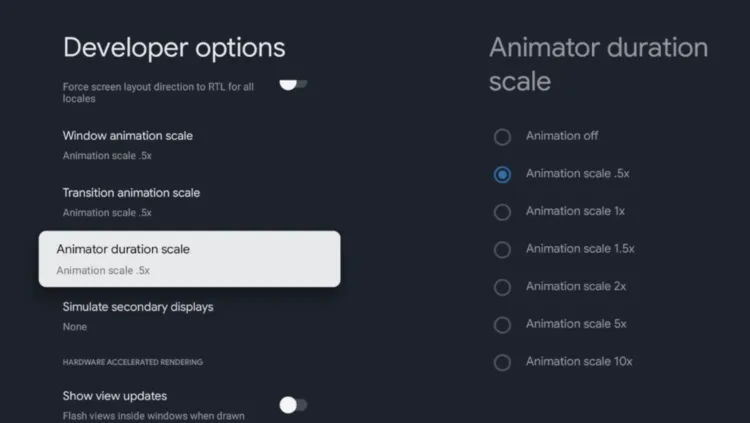
Animator duration scale: 0.5x
Fix 2: Free Up Storage
When your Google TV runs very low on storage, apps and system processes have less room to work with, which can slow things down. Here’s how to check your storage and clear some space.
Step 1: Go back to the main settings, scroll down and select System.
Select “System”
Step 2: Scroll down and select Storage.
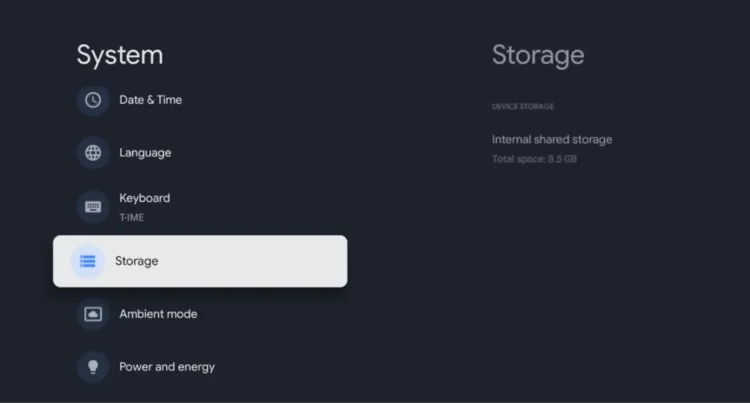
Select “Storage”
Step 3: Select Internal shared storage and give it a moment to calculate your storage usage.
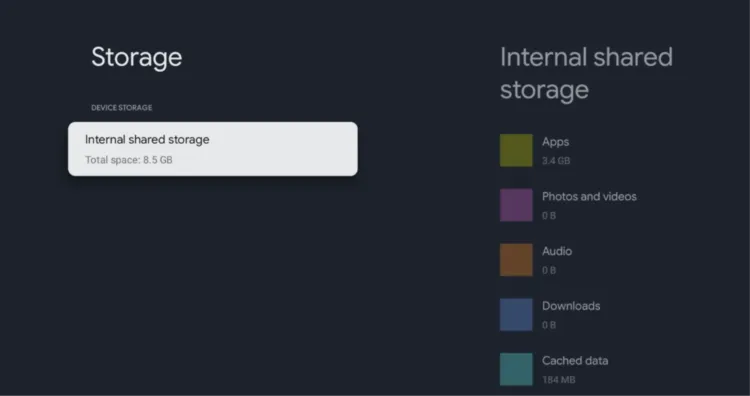
Select “Internal shared storage”
Step 4: Look for Available storage. Try to keep at least 1 GB free whenever possible.
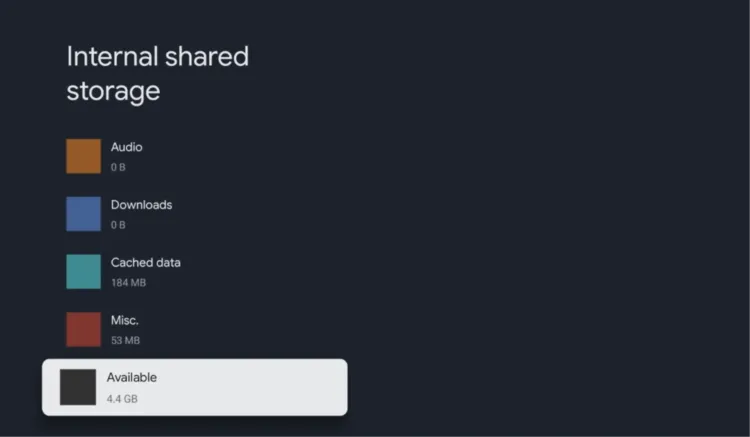
Check available storage
Step 5: Go through your installed apps and look for any you haven’t used for a while. Select the app, choose Uninstall and confirm.
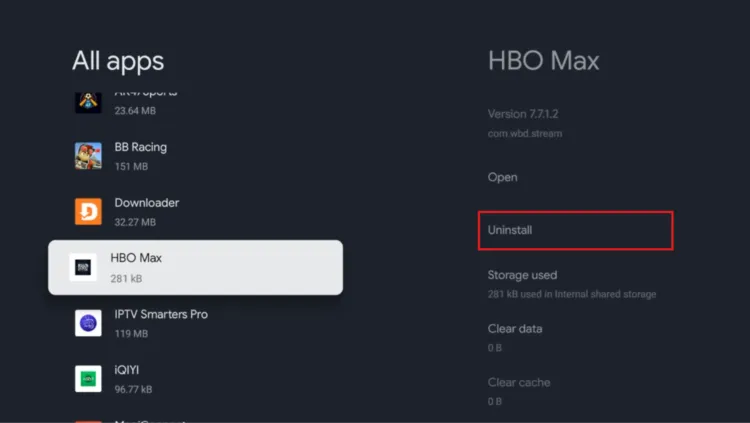
Uninstall unused apps
Step 6: Go back to the Storage menu and select Free up storage.
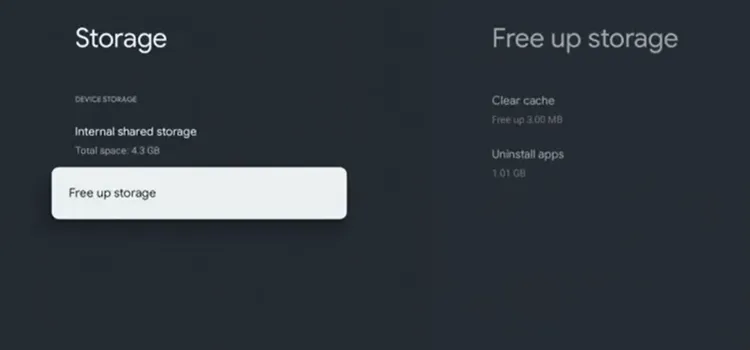
Select “Free up storage”
Step 7: If you see the option to Clear cache, select it to remove temporary files and free up extra space.
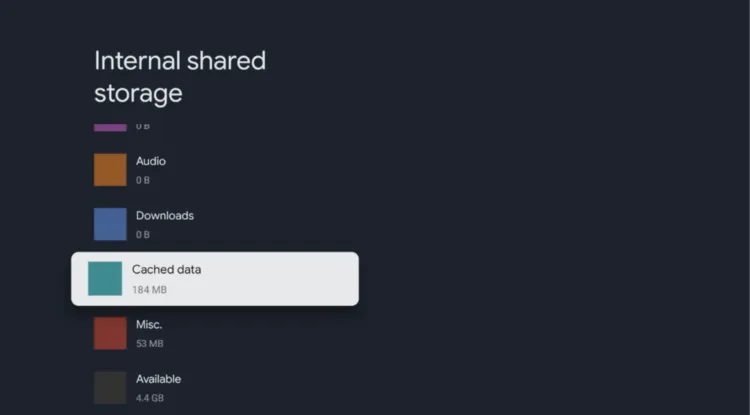
Click “Clear cache”
Fix 3: Set the Background Process Limit
The last setting lets Google TV decide how many background processes stay active based on the available system resources.
Step 1: Go back to the main settings, scroll down and select System.
Select “System”
Step 2: Then scroll down and open Developer options.
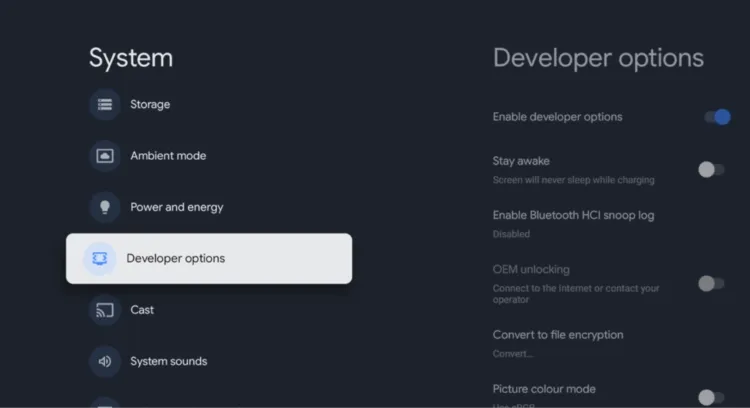
Open Developer options
Step 3: This time, keep scrolling much further down until you find Background process limit. Open it and make sure Standard limit is selected.
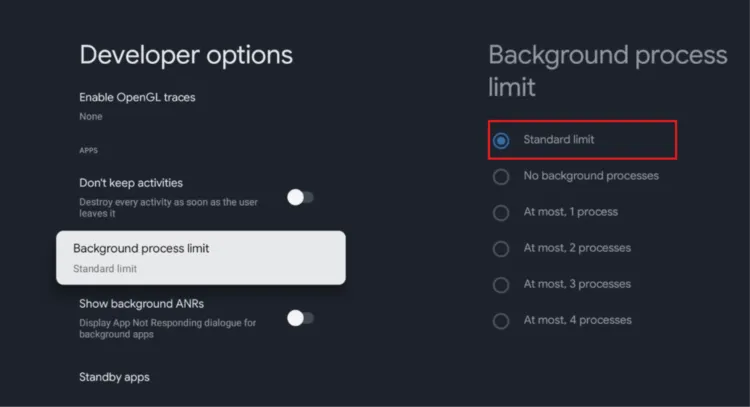
Select “Background process limit” > “Standard limit”
Why Your Google TV Gets Slow
A Google TV can slow down for a few simple reasons. Low storage leaves apps and system processes with less room to work, and too many background processes use up system resources.
The settings in this guide help with both. You should notice quicker transitions, fewer slowdowns and better overall performance, especially if your device was low on storage or had too many background processes.
📌 Related Google TV Guides
Frequently Asked Questions
How much free storage should I keep on Google TV?
Try to keep at least around 1 GB of free storage. When storage runs very low, apps and system processes have less room to work with.
Will clearing the cache delete my account or app data?
Clearing the cache removes temporary files. It normally doesn’t delete your account information or important app data.
How do I turn on developer options on Google TV?
Go to Settings > System > About, scroll to Android TV OS build and press the OK button on your remote 7 times.
Does this work on Sony, Hisense and TCL TVs?
These steps work on Google TV devices. Menus may look slightly different between brands.
Conclusion
Most streaming slowdowns are completely preventable once you know where to look in Android’s system controls. Implementing these simple developer tweaks ensures your remote clicks respond instantly and your menus render without hesitation.
Bookmark this guide to keep your smart TV running at peak performance!.