


Written and tested by Black Joseph
Updated October 28, 2026
When you buy through our links, we may earn a commission. See how we work with brands here.
You installed an app on your Google TV, but now it’s nowhere to be found. It isn’t on the home screen and it doesn’t show up in the usual places. Don’t worry, the app is almost certainly still there.
In this guide, we’ll show you two easy ways to find and open every app installed on your Google TV, including sideloaded and hidden apps. The steps work on most TVs running the Google TV interface.
📋 Table of Contents
Watch: How to Find Hidden Apps on Google TV
If you prefer to follow along on video, watch the full tutorial below, or scroll down for the step-by-step guide.
Why Some Apps Are Hidden on Google TV
Some apps install correctly but still don’t appear on the Google TV home screen. This happens often with sideloaded apps, because some Android TV apps don’t include the launcher icon that the Google TV interface needs.
Certain system apps, such as the Google Play Store, can also be hard to reach directly from the home screen. The two methods below let you open them anyway.
Method 1: Find Hidden Apps in Settings
This method works on most Google TV devices and needs no extra app. Start from the home screen.
Step 1: From the Google TV home screen, navigate to the Quick Settings icon on the top menu.
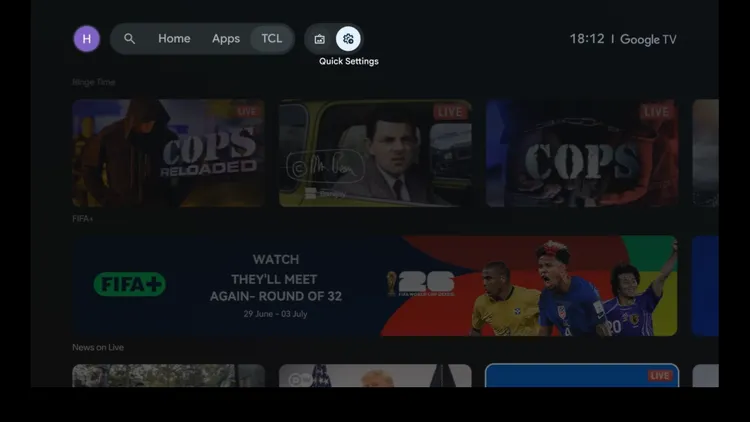
Open Quick Settings
Step 2: Navigate to the All settings icon in the top right corner and open it.
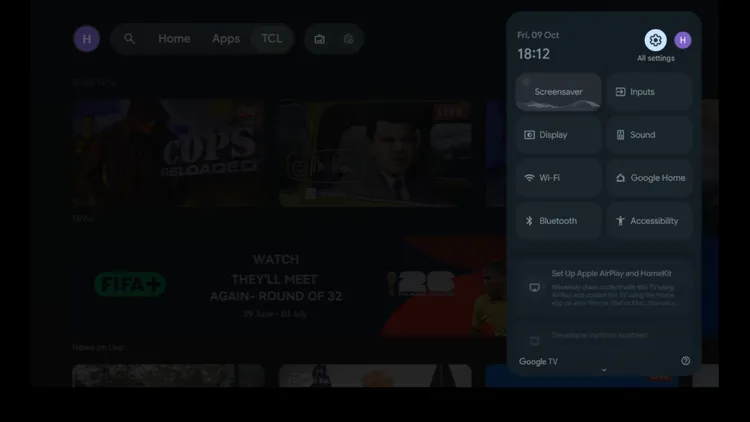
Open All Settings
Step 3: Scroll down and select Apps.
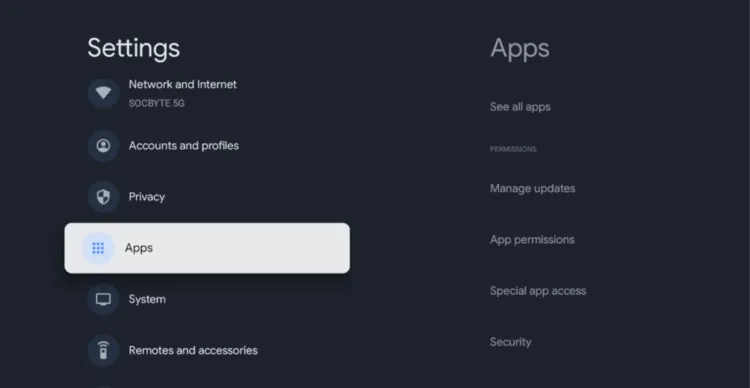
Select “Apps”
Step 4: Select See all apps.
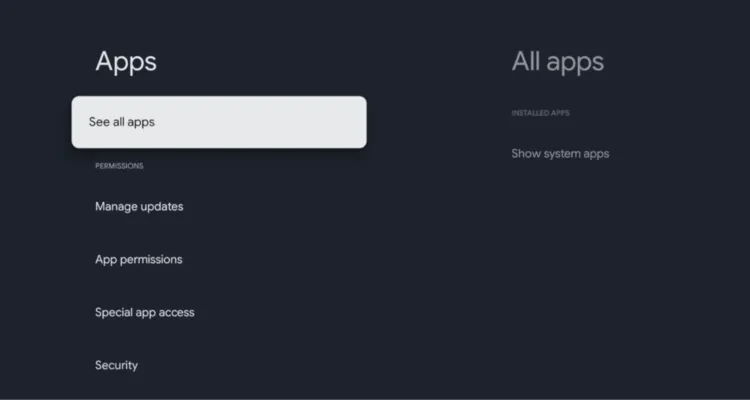
Select “See all apps”
Step 5: Scroll through the full list of installed apps, select the app, then choose Open.
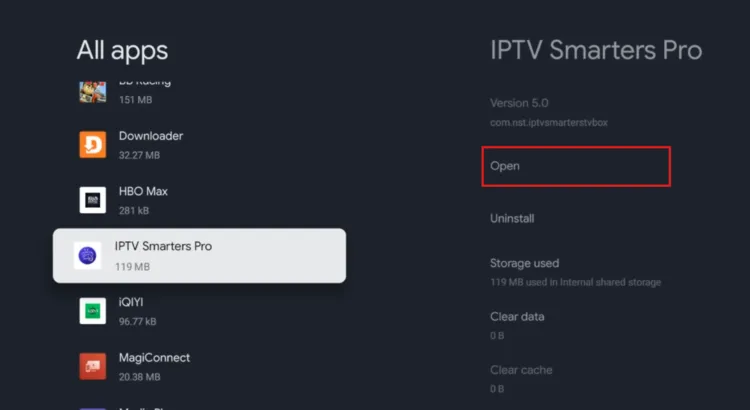
Find the app > Open
Step 6: The app should launch normally.
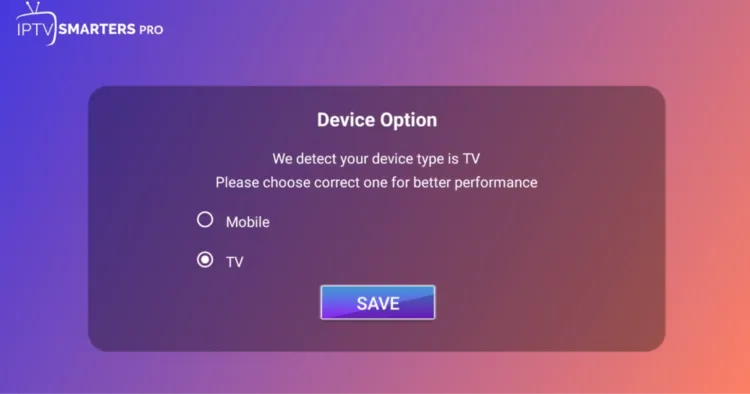
App will be launched
The downside is that you have to go through several menus every time you want to open the app. If you use sideloaded apps often, Method 2 is much faster.
Method 2: Use Sideload Launcher
Sideload Launcher shows a simple list of the apps on your TV, so you can open hidden apps without going into settings.
Step 1: Go back to the Google TV home screen and open the Apps tab.
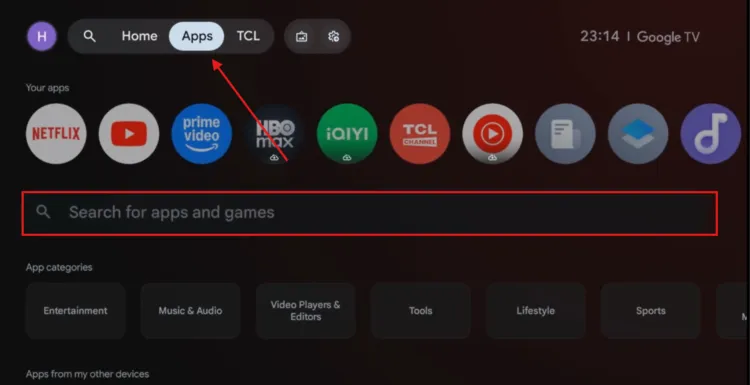
Open the Apps tab
Step 2: Use the search option and look for Sideload Launcher.
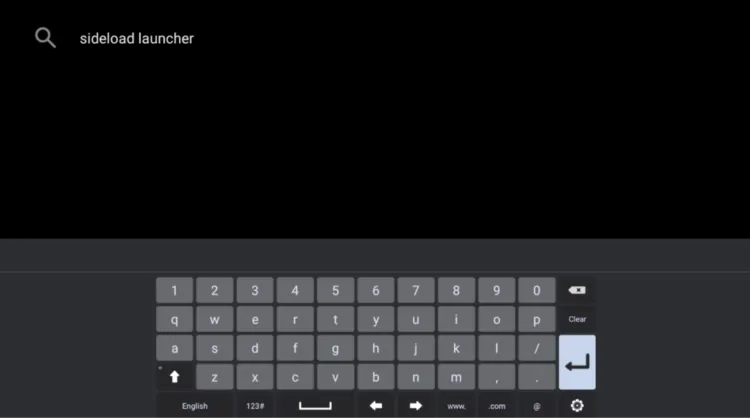
Search for Sideload Launcher
Step 3: Select the app from the search results.
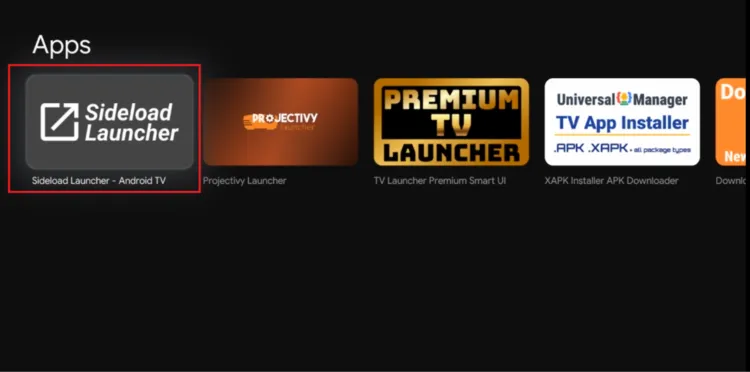
Select Sideload Launcher
Step 4: Click Install.
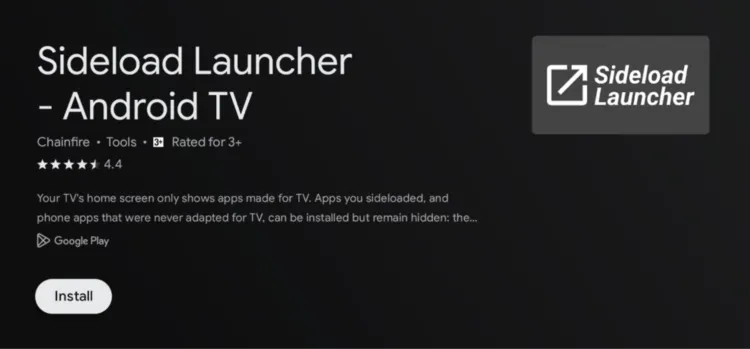
Click “Install”
Step 5: When the installation finishes, select Open to launch Sideload Launcher.
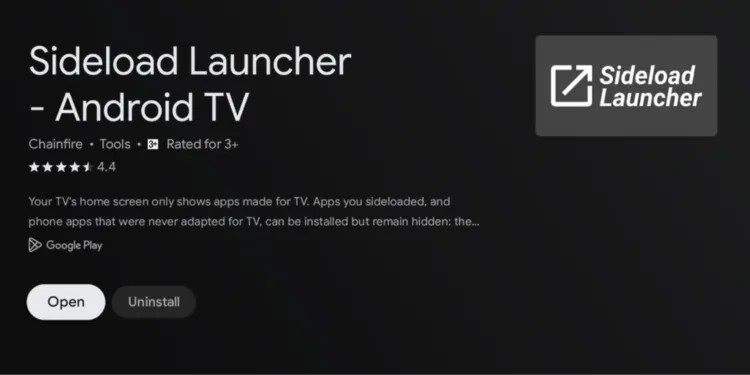
Click “Open”
Step 6: You’ll see a simple list with practically every app installed on your TV, including apps that don’t appear on the home screen. Scroll through the list and select the app you want.
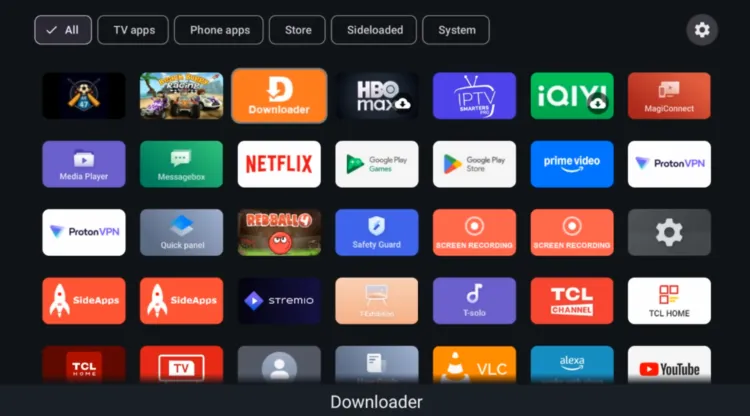
See all installed apps
Step 7: The app opens up immediately.
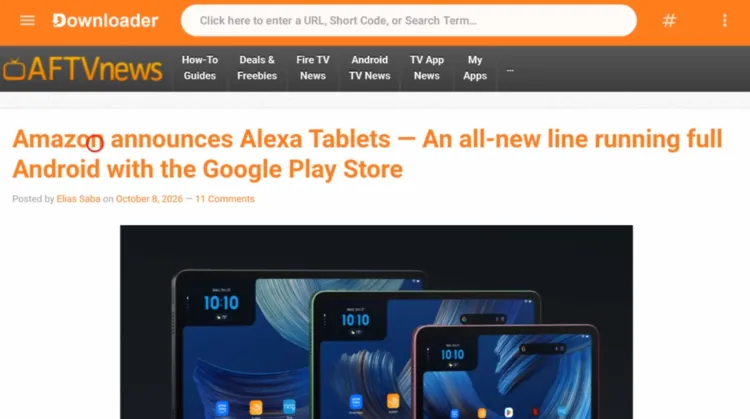
Open any app
Which Method Should You Use?
Both methods open the same apps, so choose based on how often you need them.
| Method | Best For | Notes |
|---|---|---|
| Settings menu | Opening a hidden app once in a while | Built in. No extra app, but you go through several menus each time. |
| Sideload Launcher | Opening hidden apps regularly | One app shows everything installed, so apps open in a few clicks. |
📌 Related Google TV Guides
Frequently Asked Questions
Why isn’t my installed app showing on the Google TV home screen?
Some apps install correctly but don’t appear on the home screen. This often happens with sideloaded apps, because some Android TV apps don’t include the launcher icon that the Google TV interface needs.
Is the app actually installed if I can’t see it?
Yes. If it appears in Settings > Apps > See all apps, it is installed. It just isn’t shown on the home screen.
Which method is faster?
Sideload Launcher. You only need to open one app to see and launch everything, instead of going through several menus each time.
Do I need to install anything for Method 1?
No. Method 1 uses the built-in settings menu, so you don’t need any extra app.
How do I find the Google Play Store on my Google TV?
The Play Store is a system app and isn’t always easy to reach from the home screen. Sideload Launcher lists a shortcut to it, or you can use our Play Store guide.
How do I uninstall a hidden app?
Go to Settings > Apps > See all apps, select the app and choose Uninstall.
Does this work on Sony, Hisense, TCL and Philips TVs?
Yes. The steps work on most smart TVs running the Google TV interface. Menus may look slightly different between brands.
Conclusion
If an app is missing from your Google TV home screen, it’s usually still installed. Open it from Settings > Apps > See all apps, or install Sideload Launcher to reach all your hidden apps from one list.
For safer streaming with unofficial apps, I recommend Surfshark VPN.