


Written and tested by Black Joseph
Updated October 28, 2026
When you buy through our links, we may earn a commission. See how we work with brands here.
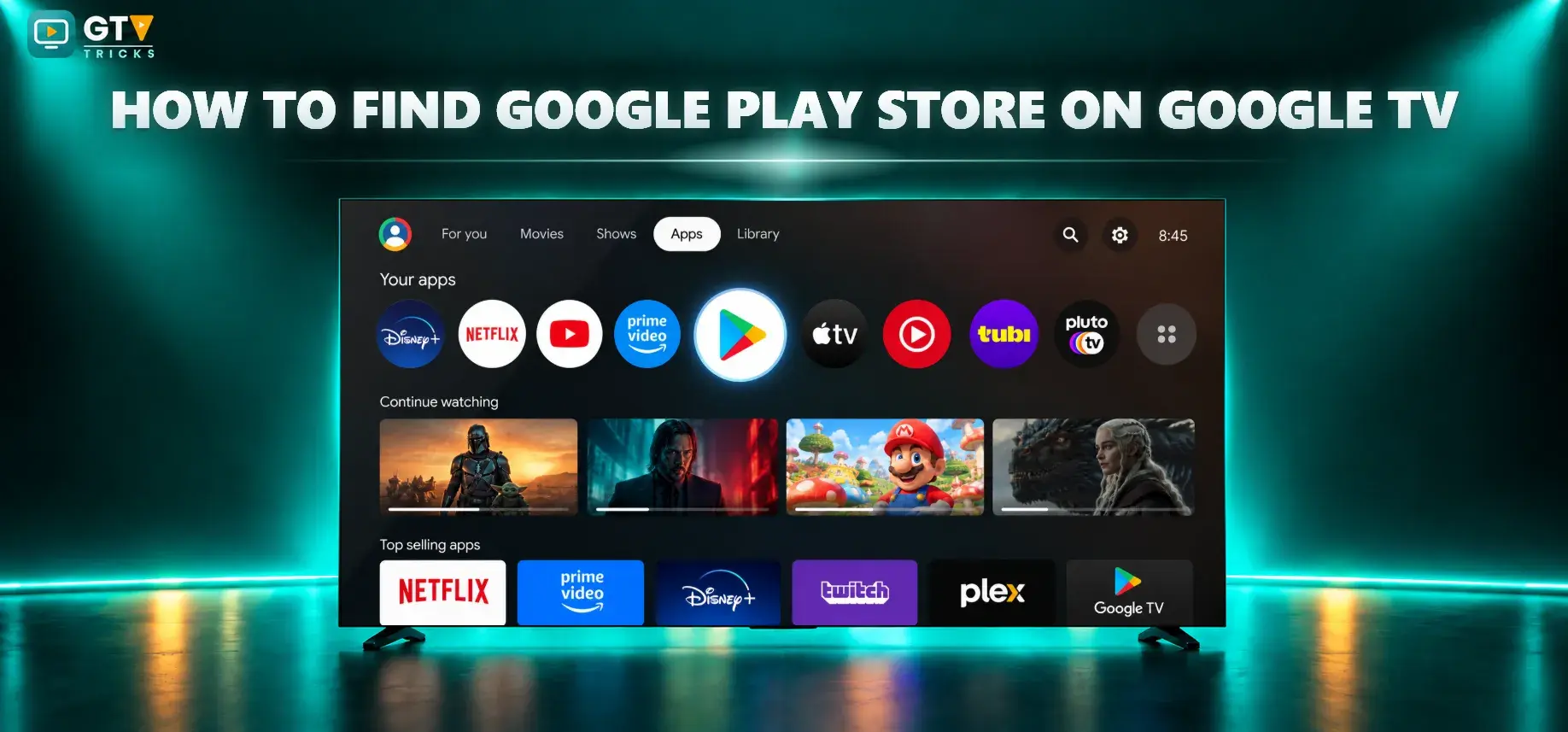
Can’t find the Google Play Store on your Google TV? There’s a simple reason. On many Google TV devices, the Play Store is not directly visible on the home screen, so you won’t see the usual app icon right away.
The good news is that it’s still on your TV. This guide shows you two easy ways to open it, so you can search for apps, browse categories, play games, install new apps and manage them.
It works on any smart TV running the Google TV interface, including Sony, Hisense, TCL, etc.
📋 Table of Contents
Watch: How to Find Google Play Store on Google TV
If you prefer to follow along on video, watch the full tutorial below, or scroll down for the step-by-step guide.
Method 1: Open Google Play Store from Settings
This method works on every Google TV. Follow these steps starting from the home screen.
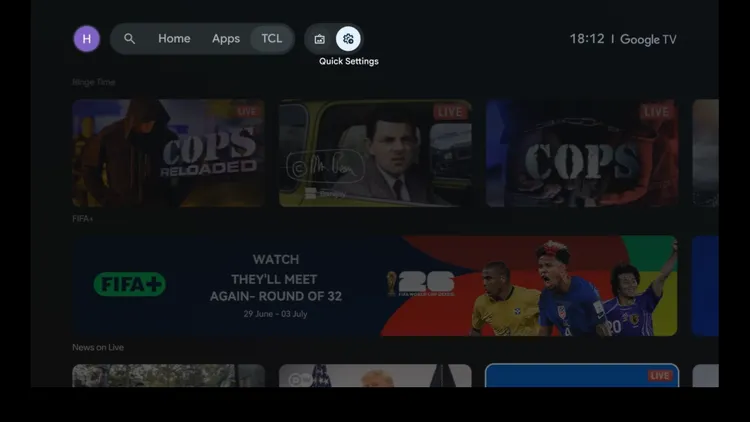
Step 1: From the Google TV home screen, navigate to the Quick Settings icon on the top menu.
Open Quick Settings
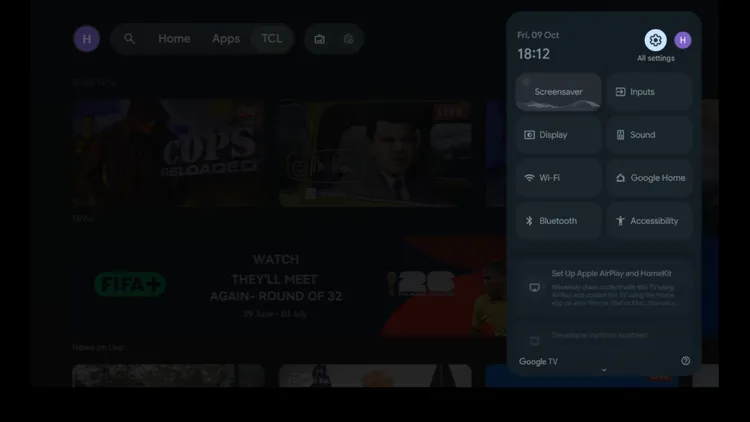
Step 2: Navigate to the All settings icon in the top right corner and open it.
Open All Settings
Step 3: From the settings menu, scroll down and select Apps.
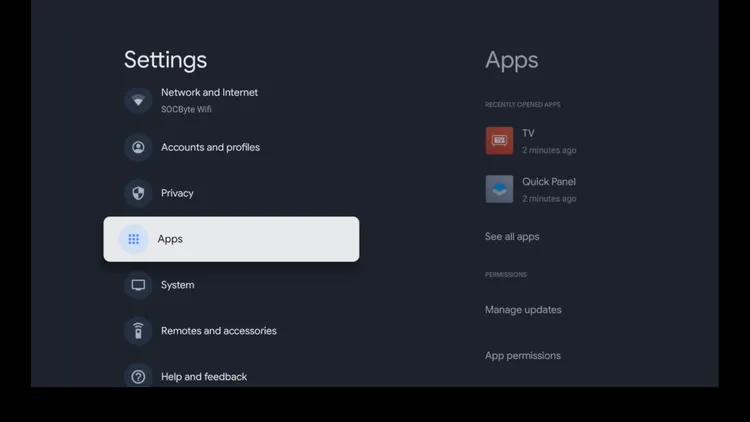
Select “Apps”
Step 4: Scroll down and select See all apps.
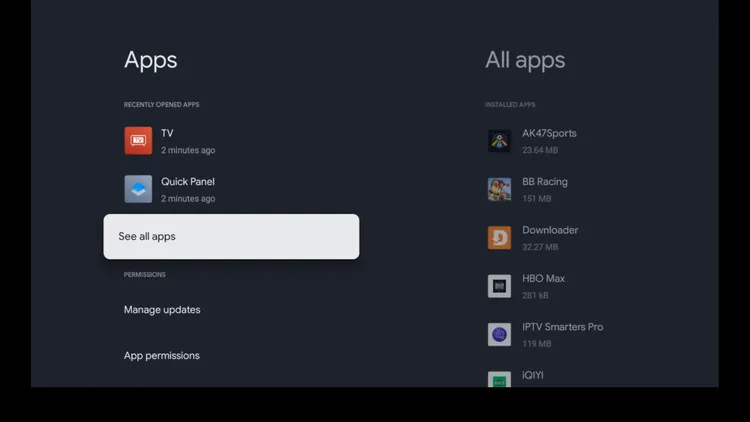
Select “See all apps”
Step 5: You’ll see a list of all the apps installed on your TV. Scroll down and select Show system apps.
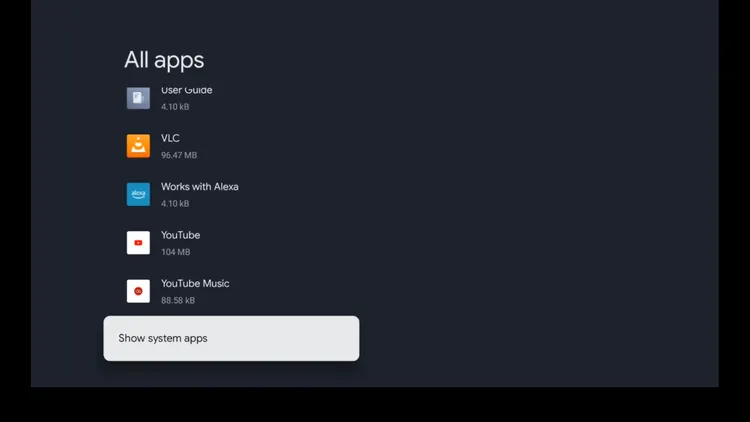
Select “Show system apps”
Step 6: Scroll through the list until you find Google Play Store, then select it.
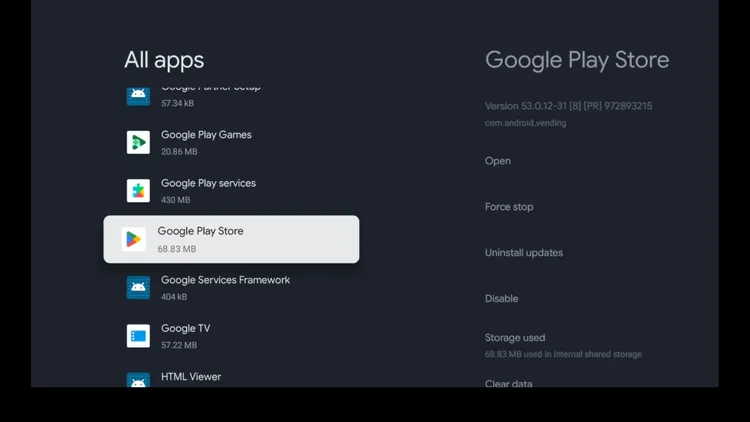
Find “Google Play Store”
Step 7: Choose Open.
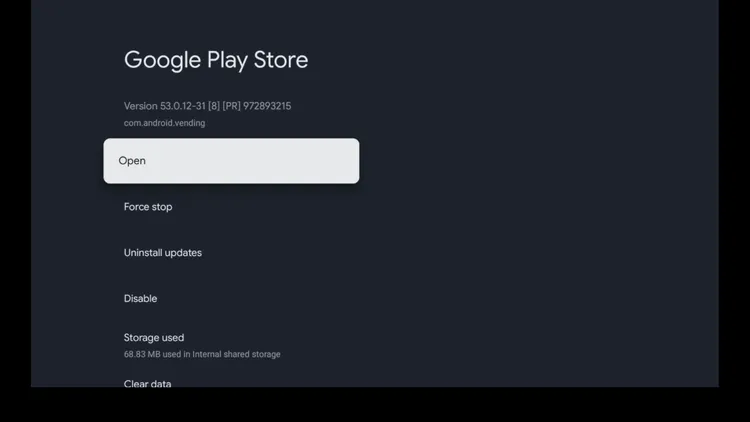
Click “Open”
Step 8: The Google Play Store is now open. You can search for apps, browse categories, and more.
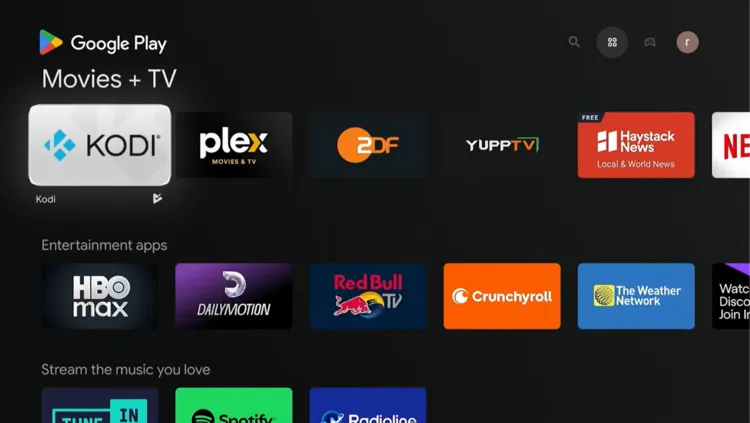
Google Play Store is open
Step 9: Install new apps. When you’re done, press the Home button on your remote to return to the home screen.
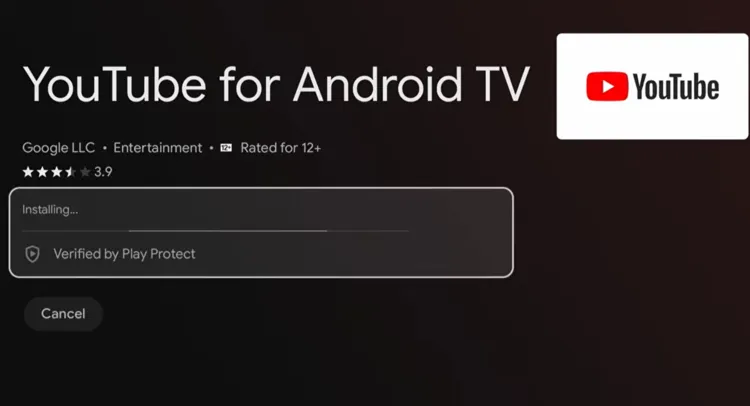
Install new apps
Method 2: Open Play Store with Voice Command
This is the fastest method. If you don’t want to go through the settings menu every time, use your voice instead.
Step 1: From the Google TV home screen, press and hold the voice command button on your remote.
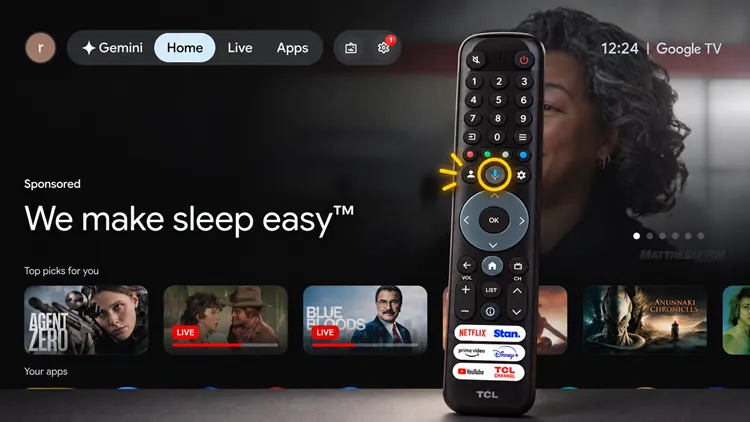
Hold the voice button
Step 2: Say “Open Google Play Store.”
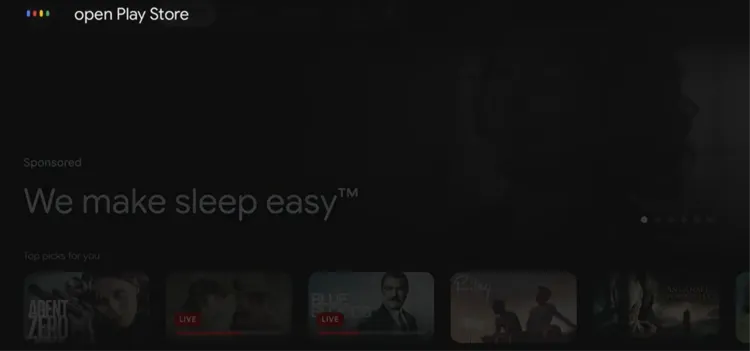
Say “Open Google Play Store”
Step 3: Within a few seconds, Google TV opens the Play Store for you.
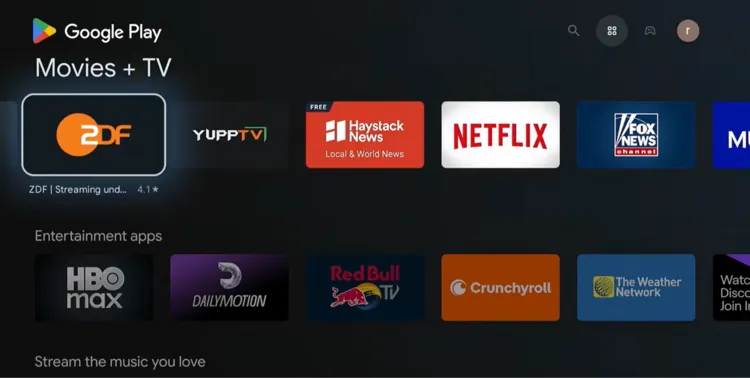
Play Store opens
Why You Can’t See the Play Store
The Google Play Store is a system app on Google TV. On many devices it isn’t pinned to the home screen, so it looks like it’s missing even though it’s installed.
Once you open it, you can search for apps, browse categories, explore games, install new apps and manage the apps on your TV. Use either method given above.
📌 Related Google TV Guides
Frequently Asked Questions
Why can’t I see the Google Play Store on my Google TV?
On many Google TV devices the Play Store isn’t shown on the home screen, so you won’t see the usual app icon. It is still installed as a system app, and you can open it with either method in this guide.
What does “Show system apps” do?
It displays system apps and services that normally stay hidden from the main app list, including the Google Play Store.
Which method is faster?
The voice command method. Press and hold the voice button on your remote and say “Open Google Play Store.”
The voice command didn’t work. What should I do?
Make sure you press and hold the voice button while you speak and that your TV is connected to the internet. If it still doesn’t work, use the Settings method instead.
Does this work on Sony, Hisense and TCL TVs?
Yes. These steps work on any smart TV running the Google TV interface. Menus may look slightly different between brands.
What can I do in the Google Play Store on Google TV?
You can search for apps, browse categories, explore games, install new apps and manage the apps you already have.
Conclusion
The Google Play Store is still on your Google TV, it’s just hidden. Open it through Settings > Apps > Show system apps, or use the quick voice command, and you can start installing apps right away.