


Written and tested by Black Joseph
Updated October 28, 2026
When you buy through our links, we may earn a commission. See how we work with brands here.
⚡️ Quick Answer: Go to Apps > Search on your Google TV, search for Downloader, select the orange app by AFTV News, click Install, then Open. Enter the code 1075775 inside the app to browse a collection of Google TV compatible apps.
Want to add apps to your Google TV that you can’t find in the Play Store? Downloader is the app you need to install. It lets you download and install any app on your TV, all with a short code.
The Downloader app itself is available on the Google Play Store, so installing it takes about a minute. This guide works on any smart TV that runs the Google TV interface, including Sony, Hisense, TCL and more.
However, third-party apps may expose your connection, so we recommend a VPN and Surfshark VPN is our recommended choice.
📋 Table of Contents
🛡️ OUR TOP PICK FOR GOOGLE TV Surfshark VPN Encrypt your Google TV connection and keep your browsing private, especially on shared or public Wi-Fi. Set up in under 2 minutes. 🔒 30-day money-back guarantee
Watch: How to Install Downloader on Google TV
If you prefer to follow along on video, watch the full tutorial below, or scroll down for the step-by-step guide.
What Is Downloader App?
Downloader is a free app by AFTV News that works like a simple web browser and file downloader for your TV.
You enter a website address or a short code, it downloads the file, and then it offers to install it. It is the easiest way to load apps that aren’t listed in the Play Store. This method is also known as sideloading.
How to Install Downloader on Google TV
Follow these steps on your Google TV. We used a TCL TV, but the screens are nearly the same on other brands.
If your TV isn’t set up yet, start with our Google TV first-time setup guide.
Step 1: Make sure your Google TV is connected to the internet, then go to the Apps section at the top of the home screen.
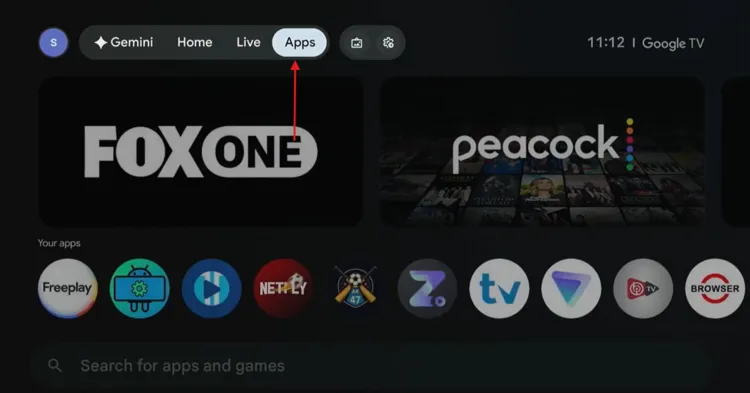
Open the “Apps” section
Step 2: Inside the Apps section, move over to Search for apps and select it.
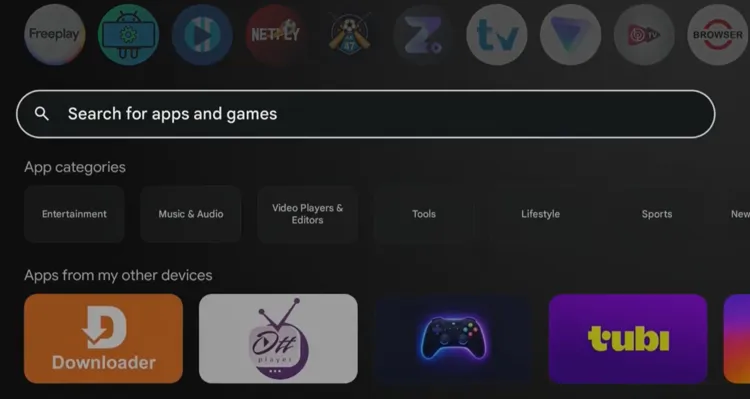
Select “Search for apps”
Step 3: Type Downloader using the on-screen keyboard. If your remote has a Google Assistant button, you can press it and say “Downloader” instead.
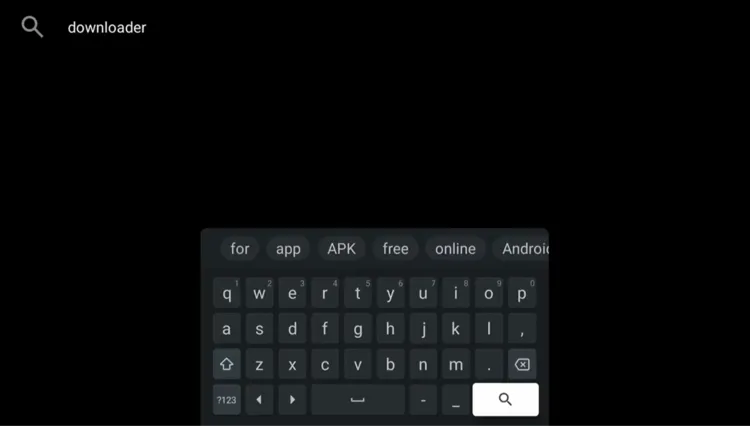
Type “Downloader”
Step 4: Find the orange Downloader app by AFTV News in the results and select it.
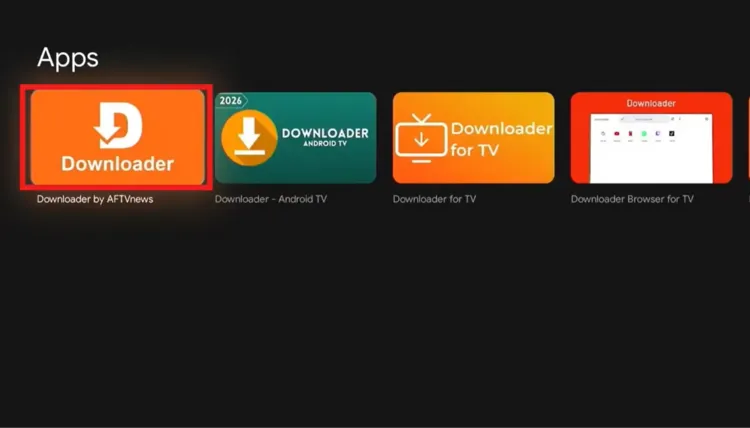
Select Downloader by AFTV News
Step 5: On the app page, select Install.
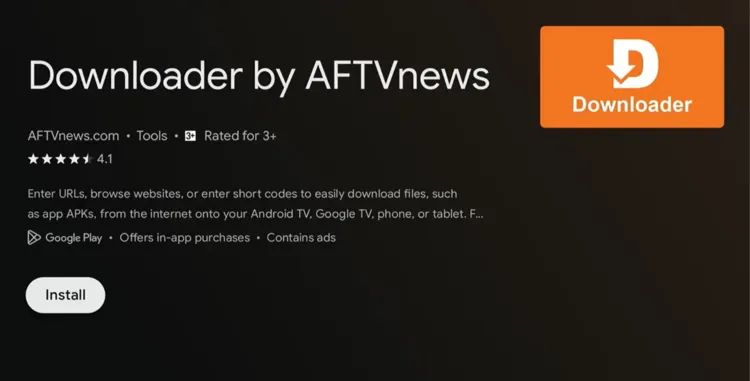
Click “Install”
Step 6: Wait a moment while Downloader downloads and installs on your Google TV.
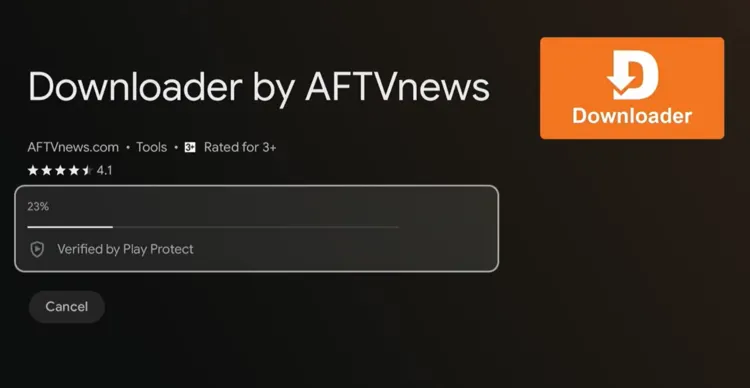
Downloader installing
Step 7: When the installation finishes, select Open to launch the app.
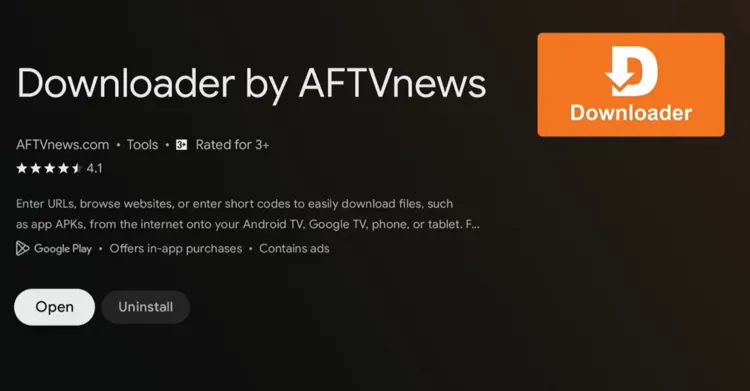
Click “Open”
Step 8: Downloader opens with a box where you can enter a website URL or a Downloader code.
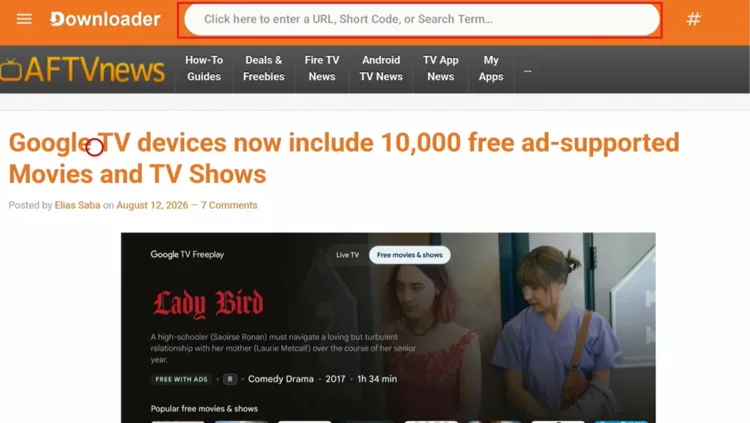
Downloader home screen
How to Install Apps (APKs) With Downloader
With Downloader open, use the code to load our app collection and install any app from it. We used IPTV Smarters Pro as the example, but the steps are the same for every app on the list.
Step 9: Click the URL box and use the on-screen keyboard to enter the Master Downloader code 1075775 with the help of your remote, then select Load.
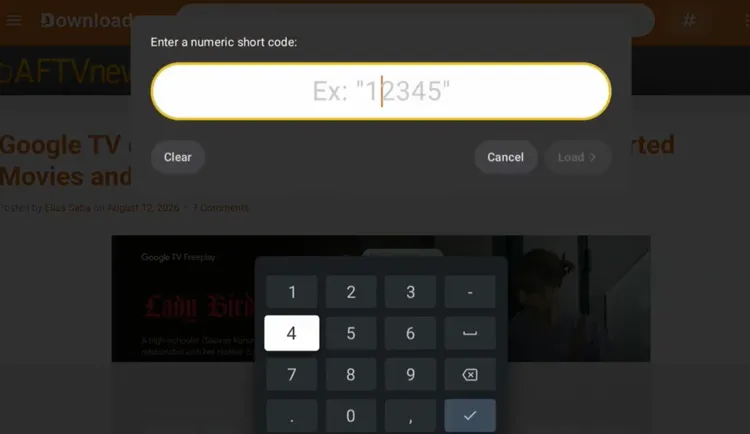
Enter the Downloader code, then select “Load”
Step 10: This is the Downloader app page. Scroll to the app you want and select its Download button. Here we picked IPTV Smarters Pro.
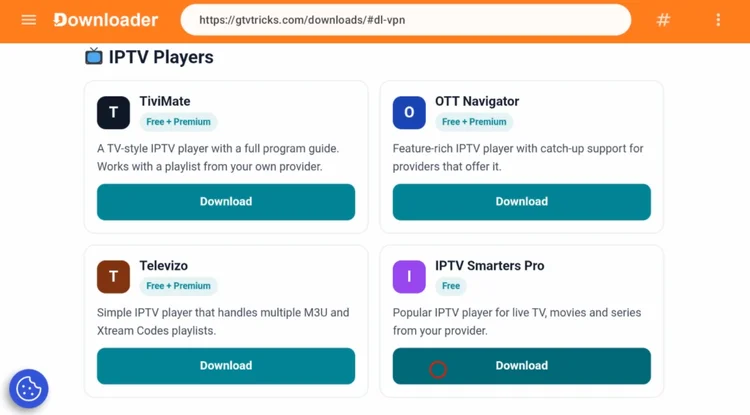
Select “Download” under your app
Step 11: A download page opens. Select the blue download button to start the download.
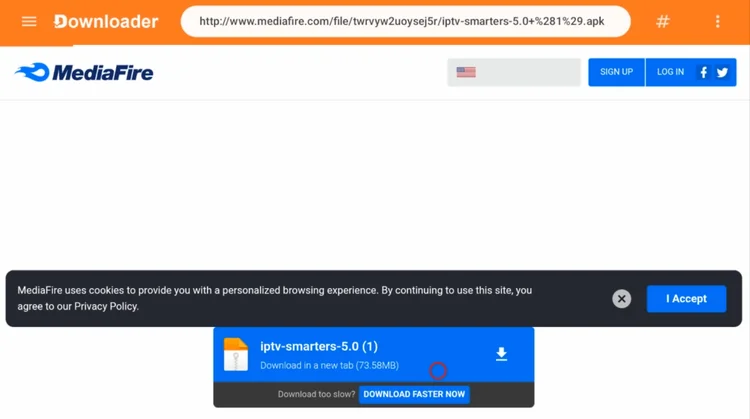
Start the file download
Step 12: Wait while the file downloads.
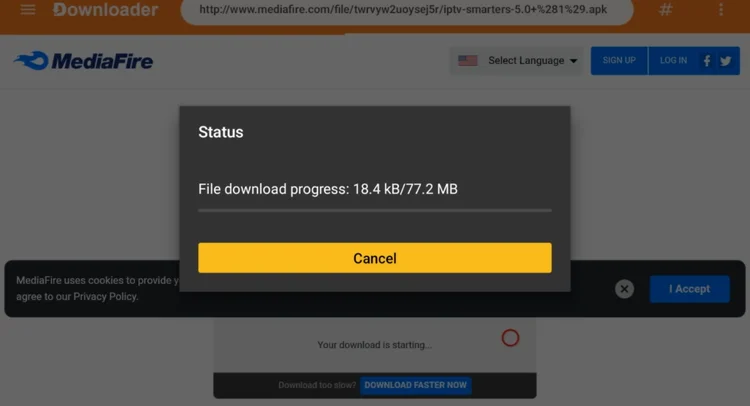
File download progress
Step 13: The first time you do this, your TV will say Downloader isn’t allowed to install unknown apps. Select Settings.
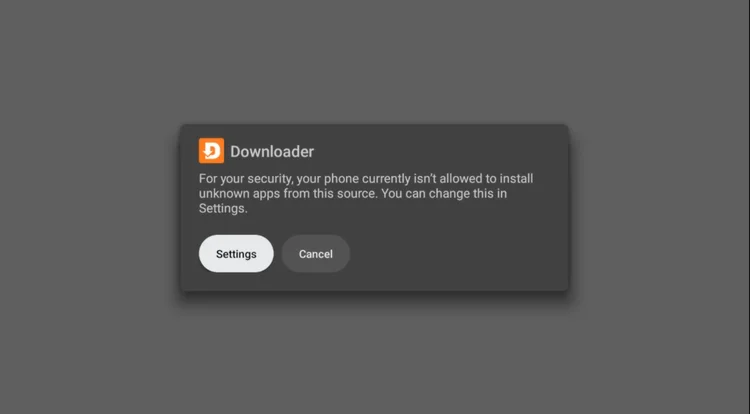
Select “Settings”
Step 14: On the Install unknown apps screen, find Downloader and turn the switch on so it says Allowed. Then press Back on your remote to return.
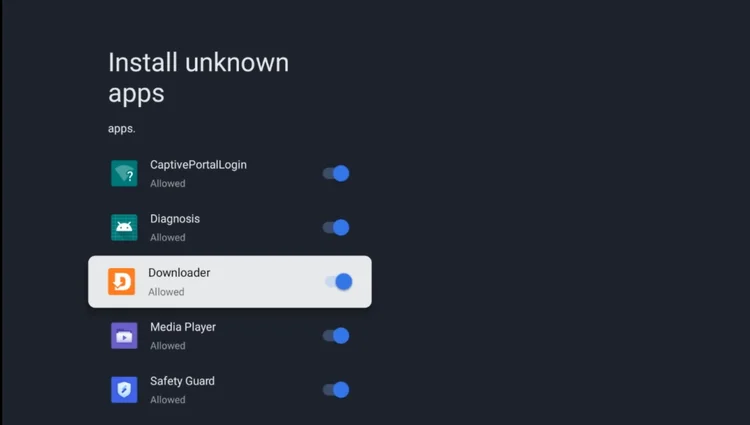
Allow Downloader to install unknown apps
Step 15: You will now see Do you want to install this app? Select Install.
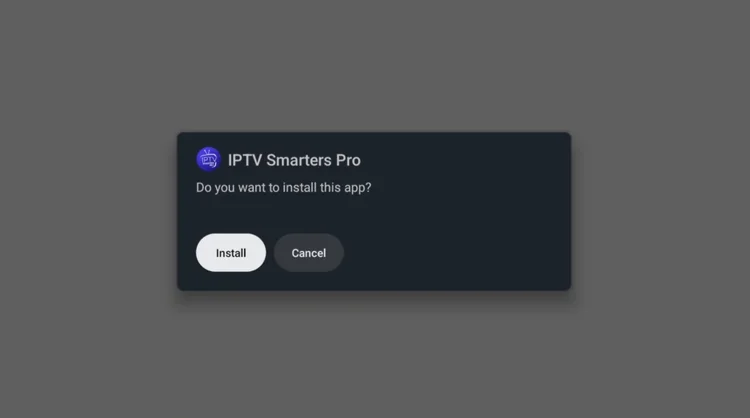
Confirm the installation
Step 16: When it says App installed, select Done to finish. You can find the app any time in the Apps section of your home screen.
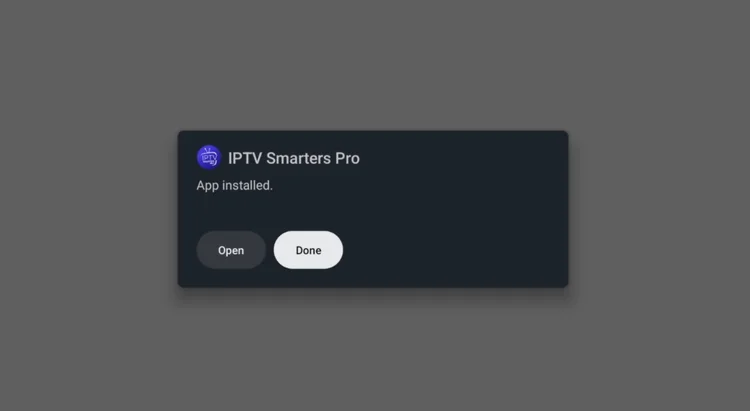
App installed
Step 17: Back in Downloader, select Delete to remove the APK file. This removes the installer file only, not the app.
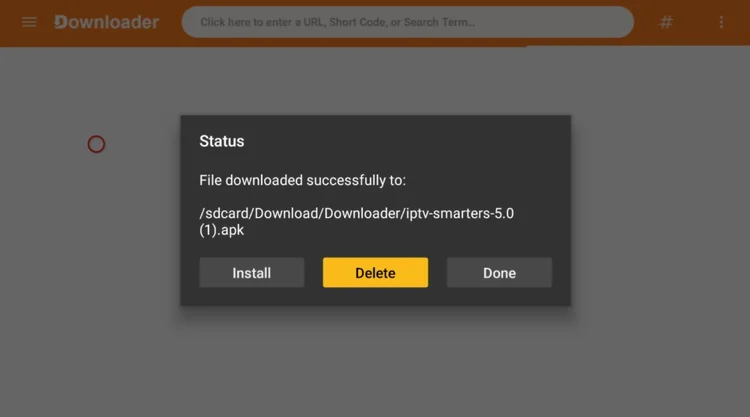
Select “Delete”
Step 18: Now go back to the home screen and choose IPTV Smarters Pro.
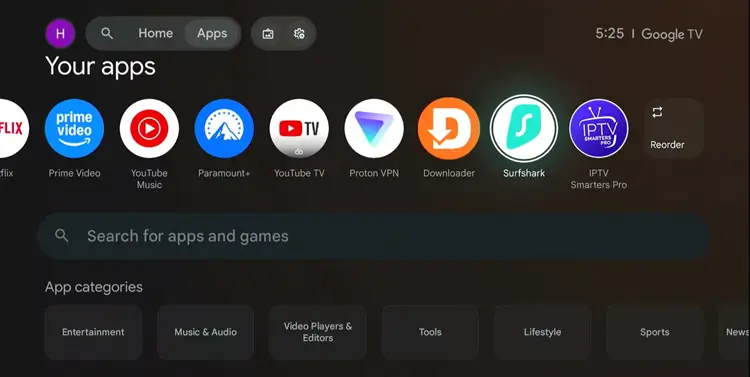
Home > Select installed app
Step 19: Done! Your app is installed on your Google TV.
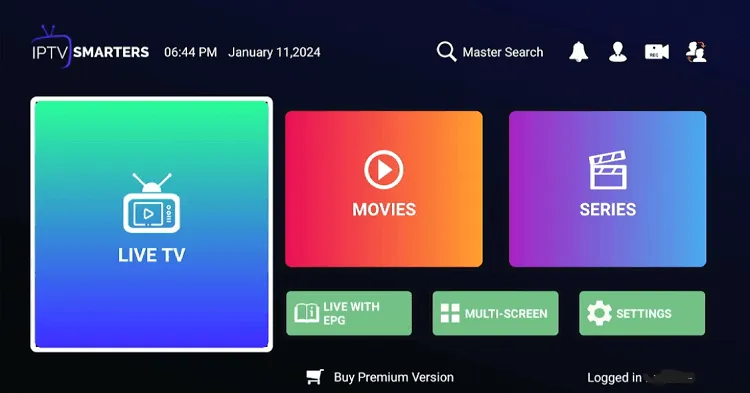
App installed using the Downloader app
Best Downloader Code for Google TV
Here is the code we used in the steps above. Type it into the Downloader box and select Load to open a collection of apps you can install on your Google TV.
Downloader Code
1075775
📌 Related Google TV Guides
- How to Set Up Google TV for the First Time
- Best Apps for Google TV
- How to Install Apps on Google TV
Frequently Asked Questions
Is Downloader free on Google TV?
Yes. Downloader is a free app on the Google Play Store, so you can install it directly from your Google TV.
Does this work on Sony, Hisense and TCL TVs?
Yes. The steps work on any smart TV running the Google TV interface. Menus may look slightly different between brands.
What is the Downloader code 1075775?
It is a code you type into the Downloader app instead of a full web address. It takes you to a collection of apps you can install on your Google TV.
I can’t find Downloader in the search results. What should I do?
Check that your TV is online and that the spelling is correct. You can also try voice search with the Google Assistant button, and look for the orange icon by AFTV News.
Why does my TV say it can’t install unknown apps?
Your TV blocks installs from outside the Play Store until you allow them. Select Settings on the prompt, turn on Downloader under Install unknown apps, then go back and select Install again.
How do I open Downloader again later?
Go to the Apps section on your Google TV home screen and select Downloader.
Why do I get buffering after installing apps?
Buffering is usually caused by a slow connection or ISP throttling. A VPN such as can help in some cases.
Final Thoughts
Installing Downloader on Google TV only takes a few clicks: search for it in the Apps section, install it, open it, and enter the code. From there you can pick an app, download it, allow the install once, and start streaming on your TV.
For safer streaming, Surfshark VPN is our top choice.