


Written and tested by Black Joseph
Updated October 28, 2026
When you buy through our links, we may earn a commission. See how we work with brands here.
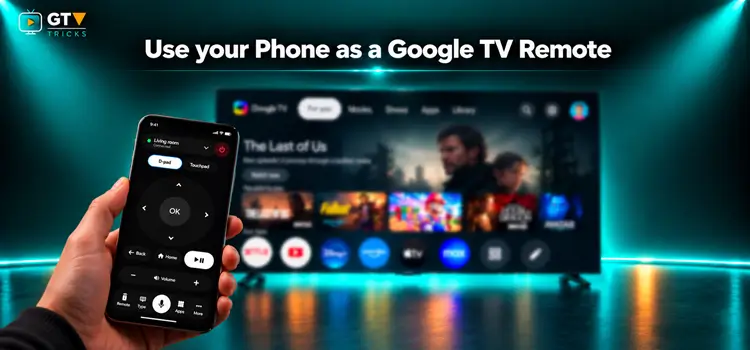
Google TV Remote gone missing? Batteries died? Or it does not pair up. You don’t need to hunt for a new one, because your Android phone can step in.
I’ve made Joz Remote for Google TV for exactly this. It’s a free Android app that gives your phone a complete remote layout: D-pad, touchpad, keyboard typing, voice search and quick app shortcuts. Your TV needs no extra setup.
I’ll show you how you can install the app and pair it with your Google TV, then how it works. It supports Google TV on TCL, Sony, Philips, Hisense, Panasonic, Xiaomi and more.
📋 Table of Contents
Joz Remote for Google TV: Quick Overview
| Detail | Info |
|---|---|
| App Name | Joz Remote for Google TV |
| Developer | Subyte |
| Works On | Android phones |
| Controls | Google TV (TCL, Sony, Philips, Hisense, Panasonic, Xiaomi and more) |
| Price | Free, no ads |
| Connection | Same Wi-Fi on your phone and Google TV |
How to Install & Pair Joz Remote With Your Google TV
This is a one-time setup per session and takes about two minutes. Turn on your Google TV and connect your TV and phone to the same Wi-Fi network first.
Step 1: Open the Google Play Store on your phone and search for Joz Remote. Pick Joz Remote for Google TV.
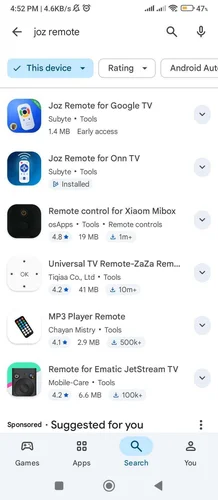
Search “Joz Remote”
Step 2: Tap Install.
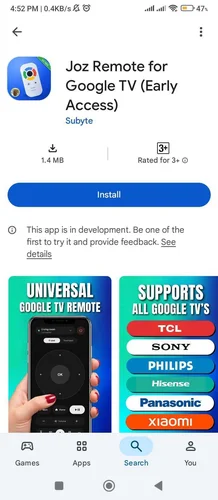
Tap “Install”
Step 3: Tap Open when it finishes.
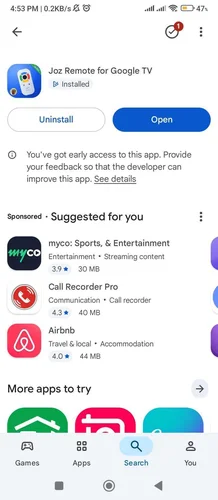
Tap “Open”
Step 4: Tap Next through the four intro screens, then tap Find my TV.
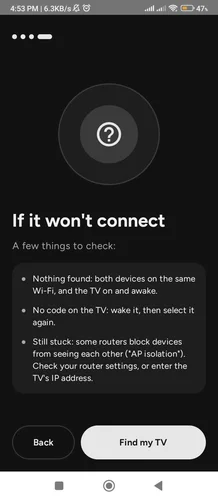
Tap “Find my TV”
Step 5: Under TVs on this network, select your Google TV.
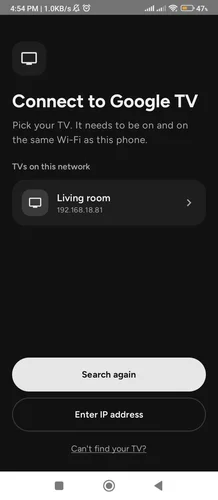
Select your TV
Step 6: A 6-character code will be shown on your TV, type the code on the phone then tap Pair.
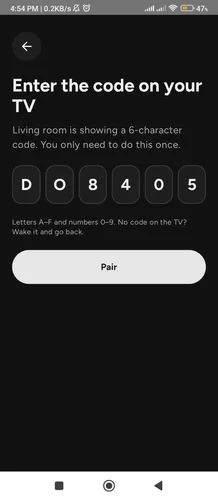
Enter the code, tap “Pair”
How to Use Joz Remote for Google TV
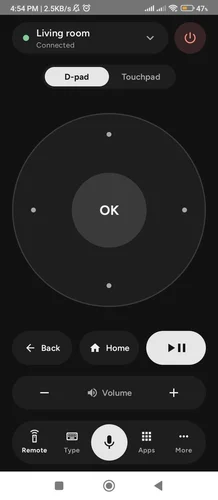
This is the interface of the Joz Remote App for Google TV. The bottom bar has five buttons: Remote, Type, mic, Apps and More.
1. Remote Tab: D-Pad, Back, Home and Volume
Tap the dots around the big circle to move, and tap OK to select. Below it you get Back, Home, Play/Pause and a Volume bar. The power button is at the top right.
Remote tab
2. Touchpad Mode
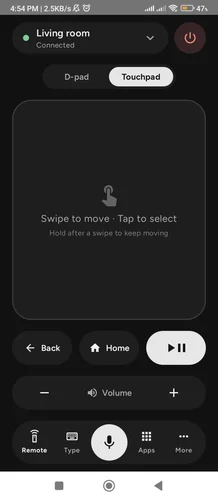
Tap Touchpad at the top to switch to a swipe pad. Swipe to move and tap to select. Hold your finger after a swipe to keep scrolling through long lists.
Touchpad mode
3. Type Tab: Use Your Phone Keyboard
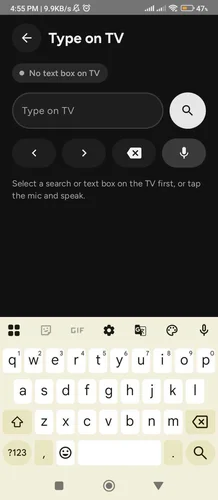
Select a search box on your TV, then tap Type and use your phone keyboard. Your text shows up on the TV as you type. The app says No text box on TV until a text box is selected.
Type on TV
4. Voice Search
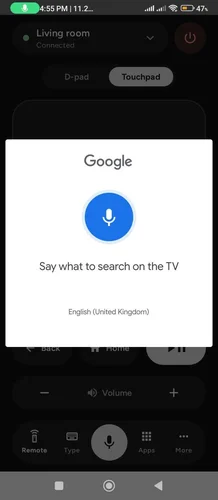
Tap the big mic button and say what you want, like a movie name or an app. The text is sent to your TV.
Voice search
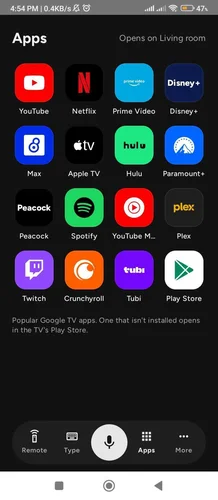
5. Apps Launcher
Tap Apps and pick YouTube, Netflix, Prime Video, Disney+ and more. The app opens on your TV. If it isn’t installed, it opens in the TV’s Play Store.
Apps launcher
6. More Controls
More controls
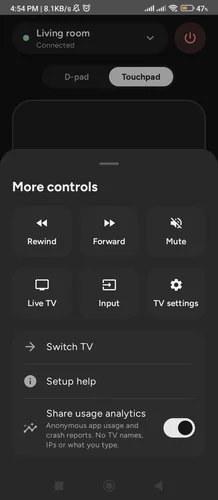
Tap More for extra controls:
- Rewind and Forward to skip around a video
- Mute to silence the TV
- Live TV to jump to live channels
- Input to switch the TV’s input source
- TV settings to open the settings on your TV
- Switch TV to connect to another TV
- Setup help to see the intro tips again
At the bottom there’s a Share usage analytics switch. It sends anonymous app usage and crash reports, and no TV names, IPs or anything you type. You can turn it off if you like.
Joz Remote Features
D-Pad Control
OK, Back, Home, Play/Pause
Touchpad Mode
Swipe to move, tap to select
Type on TV
Use your phone keyboard
Voice Search
Tap the mic and speak
Volume & Power
Buttons right on screen
Apps Launcher
YouTube, Netflix and more
More Controls
Rewind, Forward, Mute, Input
Lightweight
Only 1.4 MB
Phone Not Connecting?
| Problem | Fix |
|---|---|
| Nothing found | Make sure both devices are on the same Wi-Fi, and the TV is on and awake. |
| No code on the TV | Wake the TV, then select it again in the app. |
| TV not in the list | Tap Search again, or tap Enter IP address and type your TV’s IP address. |
| Still stuck | Some routers block devices from seeing each other (“AP isolation”). Check your router settings, or enter the TV’s IP address. |
Frequently Asked Questions
Is Joz Remote for Google TV free?
Yes. It’s free and has no ads.
Do I have to pair it every time?
No. You only pair once per TV per session. After that, just open the app.
Which TVs does it work with?
Any Google TV, including TCL, Sony, Philips, Hisense, Panasonic and Xiaomi. Your phone and TV need to be on the same Wi-Fi.
Why can’t the app find my Google TV?
Check that your phone and TV are on the same Wi-Fi and the TV is awake. If it still isn’t found, tap Enter IP address in the app, or check your router for AP isolation.
Can I control more than one TV?
Yes. Tap Switch TV in the More menu to connect to another TV.
What does the usage analytics switch do?
It shares anonymous app usage and crash reports. It doesn’t include TV names, IPs or anything you type. You can turn it off in the More menu.
Does it work on iPhone?
No, Joz Remote is currently an Android app only, but we are working on an iPhone compatible app.
Final Thoughts
With Joz Remote for Google TV, a lost or broken remote is no longer a problem. Install it, pair it once with the code on your TV, and your phone does the rest: navigation, typing, voice search and apps.