


Written and tested by Black Joseph
Updated October 28, 2026
When you buy through our links, we may earn a commission. See how we work with brands here.
Your Google TV isn’t just for streaming. With the Google Play Store, you can turn it into a simple gaming setup for the whole family. The only catch is that games aren’t easy to spot on the home screen.
In this guide, we’ll show you where to find games on your Google TV, how to install one, and the different ways to control it. The steps work on any TV running Google TV, including TCL, Sony, Philips and Hisense.
📋 Table of Contents
Watch: How to Play Games on Google TV
If you prefer to follow along on video, watch the full tutorial below, or scroll down for the step-by-step guide.
How to Install and Play Games on Google TV
Google TV doesn’t show a Games category in the Apps tab, so most people assume games aren’t available. They are. You just need to search for them. Follow these steps from the home screen.
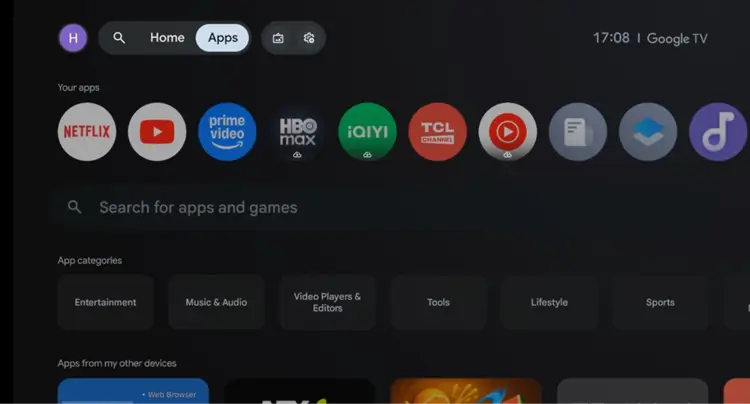
Step 1: From the Google TV home screen, open the Apps tab in the menu at the top.
Open the Apps tab
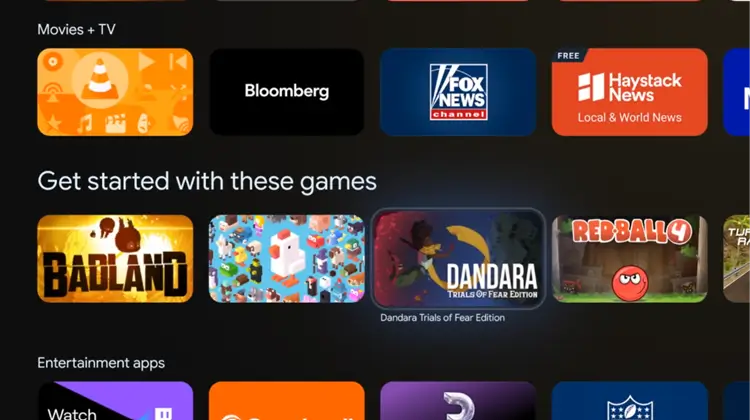
Step 2: Browse the app categories. You will Games category here.
Games category
Step 3: To see everything, scroll back up to the search bar at the top of the Apps tab. This search runs on the Google Play Store.
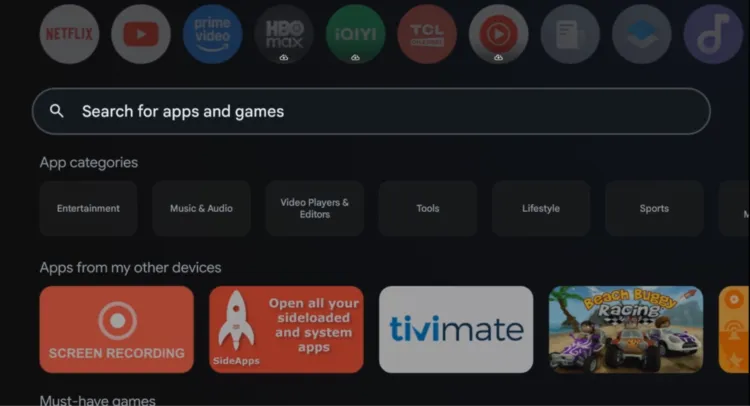
Select the search bar
Step 4: Type games using the on-screen keyboard or your voice button, then wait a moment for the results to load.
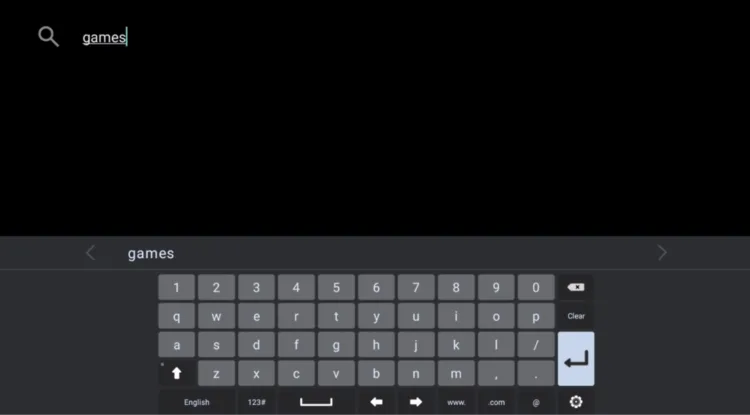
Search for “games”
Step 5: Scroll through the results and pick a game. We chose Beach Racing for this guide.
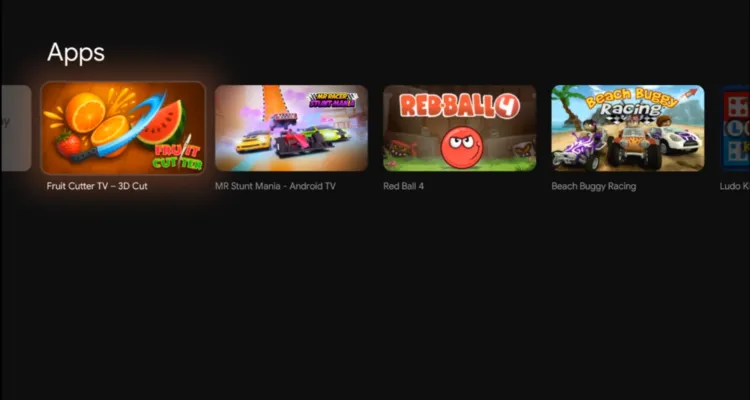
Pick a game
Step 6: On the game’s page, select Install and wait a few seconds for the download to finish.
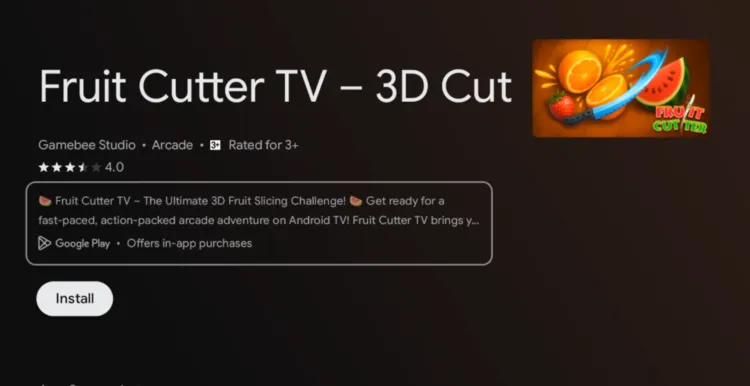
Click “Install”
Step 7: When the installation is complete, select Open to launch the game.
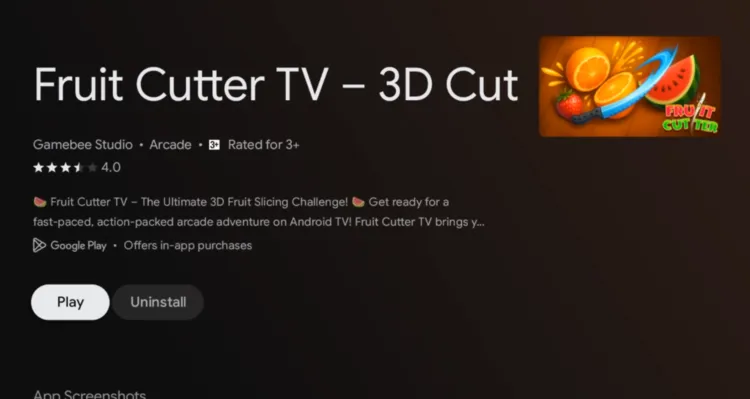
Click “Open”
Step 8: The game has been installed.
Game is installed
Step 9: Play with your remote’s up, down, left and right buttons to move through the game.
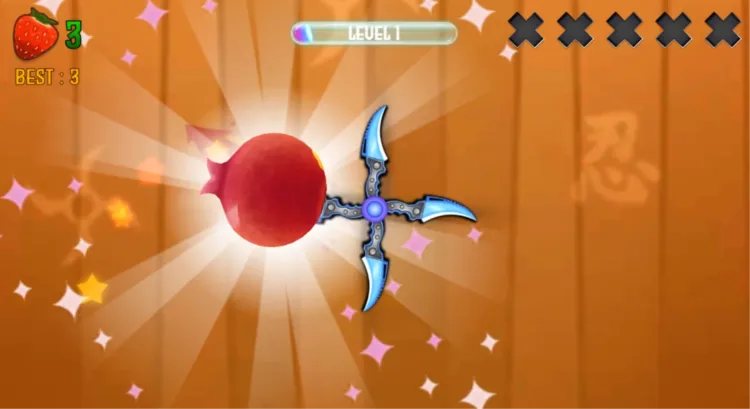
Game is running
Ways to Control Games on Google TV
You don’t need to buy anything to start. Here’s how the three main options compare.
| Option | Best For | Notes |
|---|---|---|
| Remote | Simple, casual games | Use the up, down, left, right and OK buttons. Nothing extra to buy. |
| Bluetooth controller | Racing, action and other fast games | Most precise. Some games need a gamepad. |
| Phone as controller | Party and multiplayer games | Works only with games and apps that support it. |
How to Connect a Bluetooth Controller to Play Games on Google TV
A controller gives you much better control in racing and action games. To pair one:
- Put your controller in Bluetooth pairing mode. Check the controller’s manual for the button combination.
- On your Google TV, go to Settings > Remotes & Accessories > Pair remote or accessory.
- Select your controller when it appears in the list.
- Open a game and test the buttons.
Tips for a Smoother Gaming Experience
- Check the game’s Play Store page to see if it needs a gamepad before you install it.
- Keep some free storage. Games can take a lot of space, so remove apps you don’t use.
- Use a strong Wi-Fi connection for downloads and for cloud gaming.
- Start with the remote for casual games, then add a controller if you want more precision.
📌 Related Google TV Guides
Frequently Asked Questions
Can you play games on Google TV?
Yes. Google TV has access to the Google Play Store, which includes games made for the big screen. Just search for them, install them and play.
Why is there no Games category on my Google TV?
The Apps tab doesn’t have a dedicated Games category. Use the search bar to look up games, or check the Must-have games row for a few popular picks.
Do I need a controller to play games on Google TV?
Not always. Simple games work with the directional buttons on your remote, but action and racing games are easier with a controller. Games that require a gamepad usually say so on their Play Store page.
Can I use my phone as a game controller?
Some games and apps let you use your phone as a controller.
Are Google TV games free?
Many games are free to install, while others show a price on the Play Store page. Some free games also include ads or in-app purchases.
Does this work on Sony, Philips, Hisense and TCL TVs?
Yes. The steps are the same on any smart TV that runs the Google TV interface. We used a TCL Google TV.
Why do games lag or crash on my Google TV?
Low storage is a common cause. Delete apps you no longer use, and see our guide on fixing a slow Google TV for more tips.
Conclusion
Playing games on Google TV is easy once you know where to look. Search for games in the Apps tab, install a title you like and start playing with your remote, a controller or your phone.